
Overview
COTY Secrétariat is a virtual secretary for small businesses. You talk to her as you would to a colleague: she checks your email, calendar, contacts and quotes, then prepares the work. You stay in control of everything that goes out.
What she does for you
| Area | Examples |
|---|---|
| Mailbox | Summarise pending messages, prepare a reply, forward, archive. |
| Calendar | Tell you what is coming up, suggest a slot, book an appointment. |
| Contacts | Find a phone number, create or complete a client record. |
| Quotes | Prepare a quote with Belgian VAT, send it as a PDF, track its status. |
| Reminders and memos | Schedule a reminder by email or text message, note a phone message, create a task. |
| Phone | Answer, inform the caller, take a message, suggest an appointment. |
| Knowledge base | Remember your opening hours, prices and work habits to answer better. |
By default, anything that sends or deletes something (an email, a quote, a confirmed appointment) waits for your go-ahead in the “Actions to confirm” panel. Each business's data is isolated: nobody else can access it.
What you need
- A recent browser (Chrome, Edge, Firefox or Safari) on a computer, tablet or smartphone.
- An authenticator app on your phone (Google Authenticator, Microsoft Authenticator, Authy…).
- Your business mailbox (Gmail, Outlook / Microsoft 365, OVH or any other host).
Creating your account and signing in
Each business has its own address, for example pme.coty.agency/dubois-joinery. Signing in is protected by a password and a 6-digit code that changes every 30 seconds.
Create your account
- Open the sign-in page and choose the Create an account tab.
- Enter your business name: it becomes your personal address (shown just below).
- Enter your email and a password of at least 10 characters, with at least one letter and one digit.
- A QR code appears: scan it with your authenticator app.
- Type the 6-digit code shown by the app, then confirm. Your account is ready.
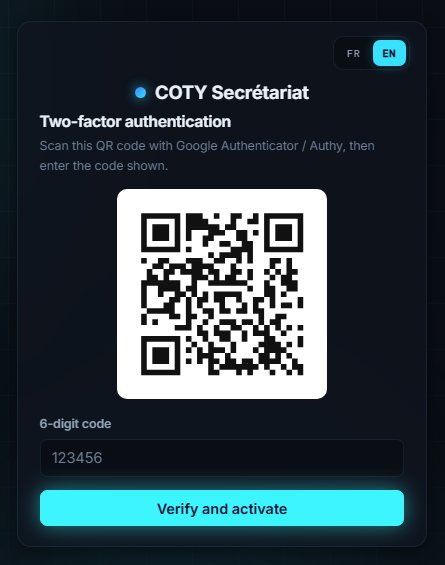
Keep your phone (or a backup of your authenticator app) safe. If you lose it, contact support to reset your two-factor authentication.
Signing in
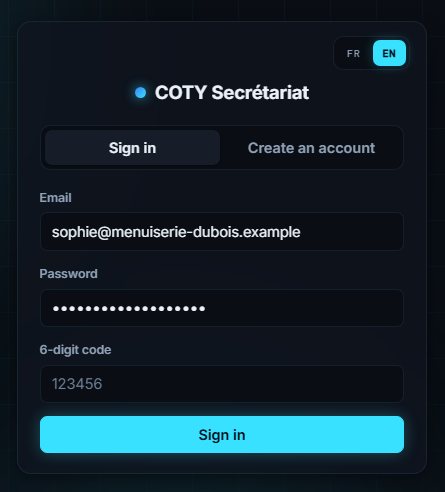
- Sign in tab: enter your email and password.
- Open your authenticator app and type the 6-digit code.
- Click Sign in: you land on the assistant's page.
Signing out
At the bottom of the left menu, click Sign out. Remember to do so on a shared computer.
Getting to know the interface
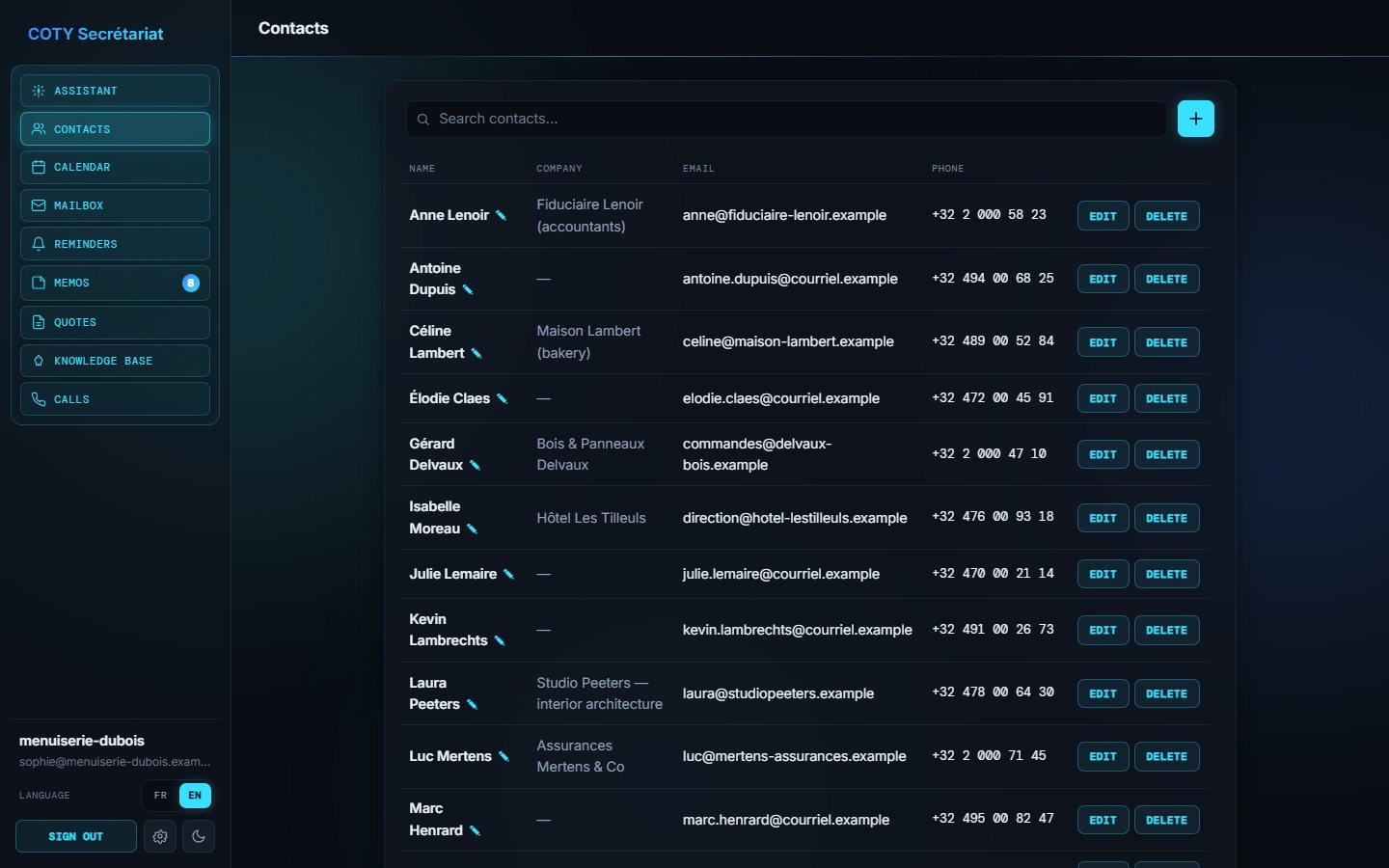
The screen has a menu on the left and the work area on the right.
The menu
| Entry | What it is for |
|---|---|
| Assistant | Chat with your assistant and approve her actions. |
| Contacts | Your address book of clients and suppliers. |
| Calendar | Your appointments, by day, week or month. |
| Mailbox | Your emails, to handle or handled, and your drafts. |
| Reminders | Messages scheduled by email, text message or WhatsApp. |
| Memos | Messages taken for you and tasks to do. |
| Quotes | Creating, sending and tracking your quotes. |
| Knowledge base | Your business knowledge (opening hours, prices, procedures). |
| Calls | The log of calls received by phone reception. |
The bottom of the menu
- Your workspace name and the email of the signed-in account.
- The gear wheel opens the settings menu: Assistant settings, Notifications & reminders, Mailbox, My business (quotes), Telephony, or All settings.
- The sun / moon button switches between dark and light themes; your choice is remembered.
- The FR | EN switch changes the interface language instantly; it is also remembered.
- The Sign out link.
The counter next to Memos shows how many memos are still open: one glance tells you whether anything is left to handle.
The assistant
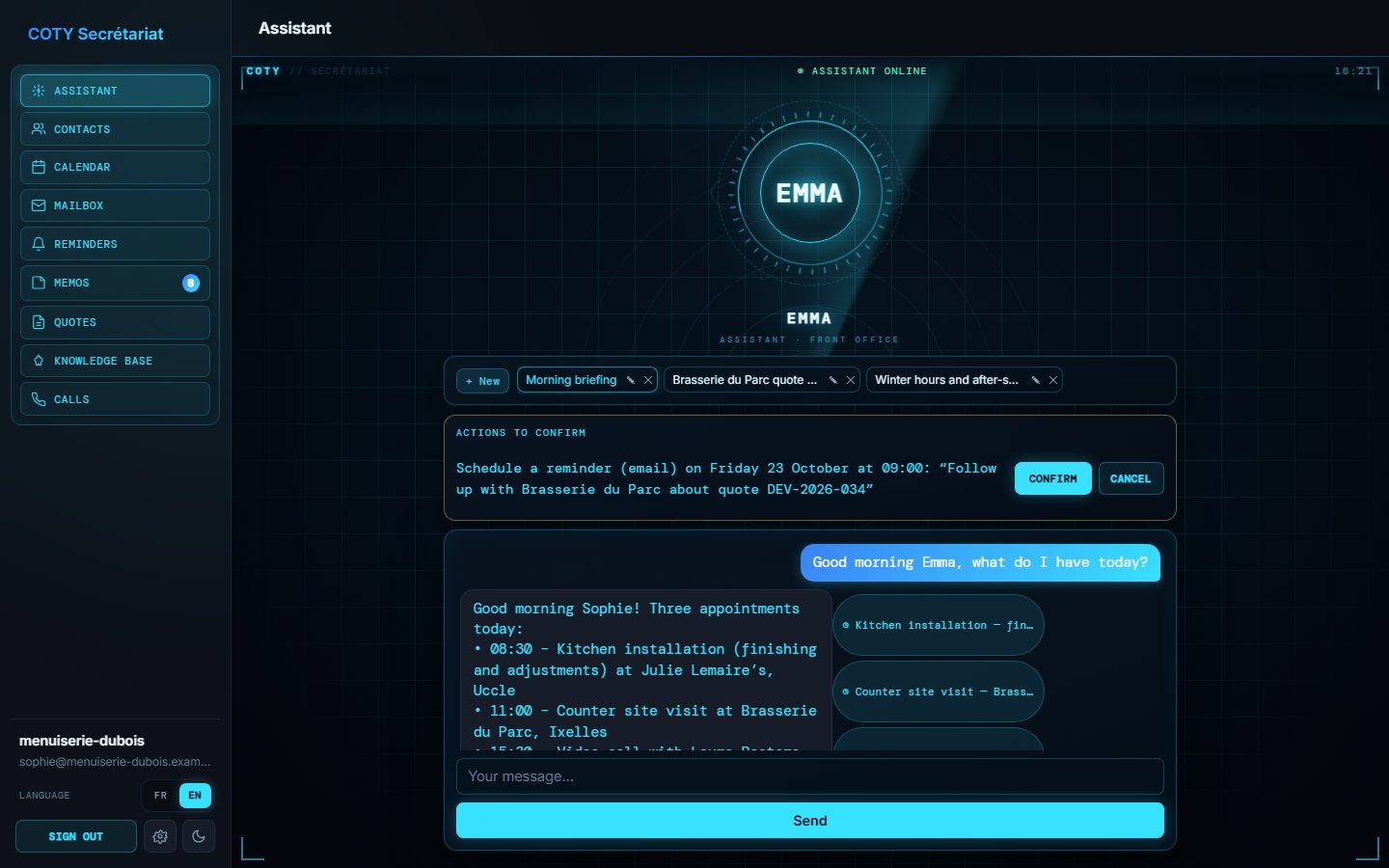
This is the heart of COTY Secrétariat. Write to your assistant as you would to a colleague: she understands everyday language, fetches the information from your tools and answers within seconds — in the language of your interface.
 123456
- 1Conversations: new conversation, resume, rename, delete.
- 2Actions to confirm: nothing goes out without your click.
- 3Topics cited: one click opens the item's summary.
- 4Your message: write as you would to a colleague.
- 5Counter of open memos.
- 6Settings (gear wheel) and light / dark theme.
Asking a question or giving an instruction
Type your message in the Your message… field and press Enter. A few examples:
| You write | She does |
|---|---|
| “What do I have tomorrow?” | Lists tomorrow's appointments. |
| “Summarise the emails I need to handle” | Summarises the pending emails, most important first. |
| “Which quotes are pending?” | Lists quotes sent without a reply, with their amount. |
| “Who called today?” | Summarises today's calls and the messages left. |
| “Book an appointment with Mr Renard on Thursday at 10 am” | Prepares the appointment and asks you to confirm. |
| “Remind me to call the accountant on Friday at 9 am” | Prepares a reminder and asks you to confirm. |
Topics cited
Under each answer, small tags recall the items she used: a contact, an email, a quote, an appointment, a memo or a knowledge-base card. Click a tag to show its summary in the Topic panel, then Open details to go straight to the item.
Actions to confirm
When the assistant wants to create, send or delete something, she does not do it right away: the action appears in the Actions to confirm panel, with a clear description.
- Confirm carries out the action immediately (the appointment is booked, the reminder scheduled…).
- Cancel drops it: nothing is done.
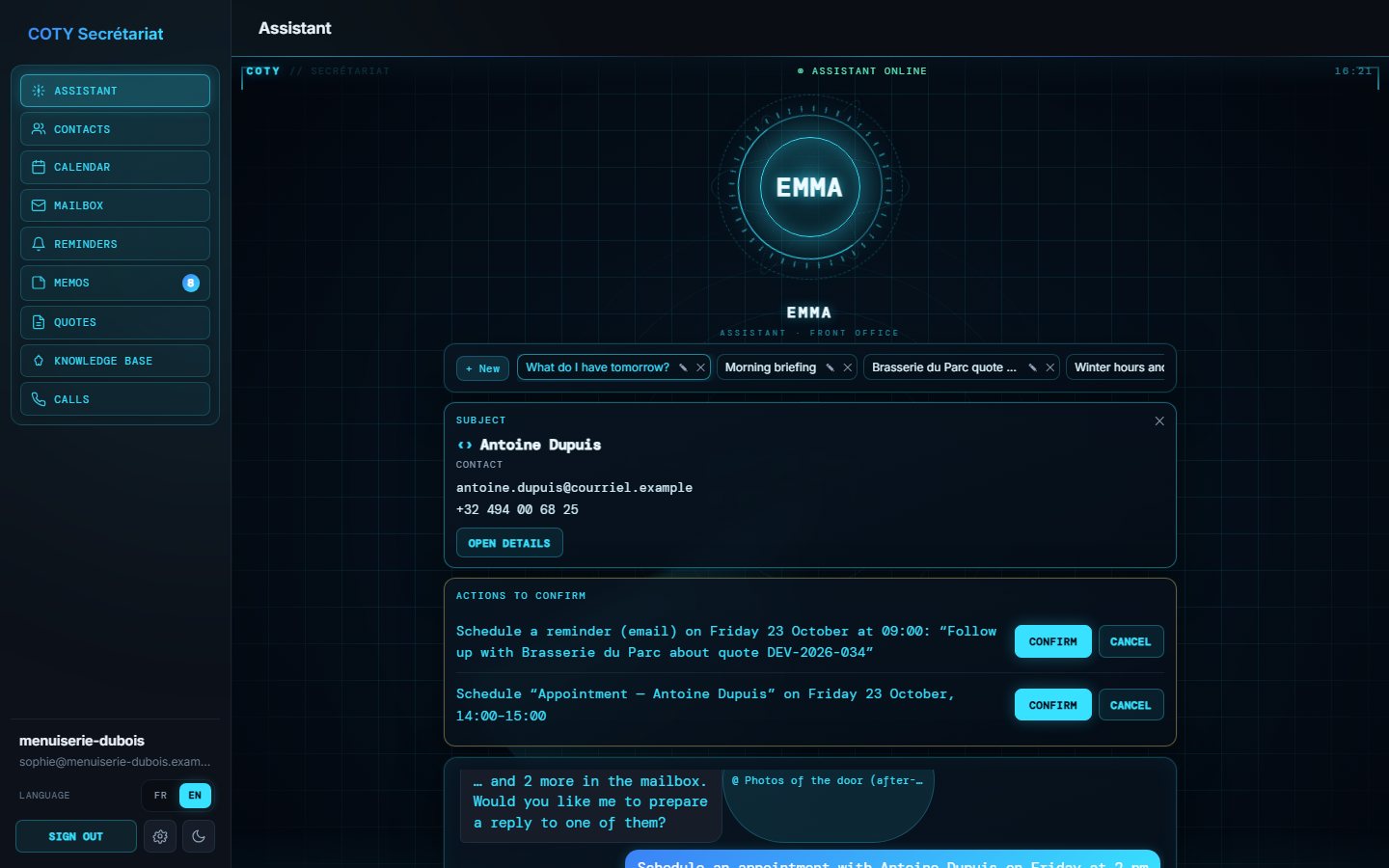
If you would rather the assistant act without asking, turn on autonomous mode in Settings → Assistant settings. We recommend keeping “approval” mode for the first few weeks.
Conversations
- + New opens a blank conversation (handy for changing the subject).
- Click a conversation in the list to pick it up where you left off.
- The pencil lets you rename it, the bin delete it.
Quick notes
Below the conversation, the Quick notes card works as a reminder pad: one line, Enter, done. These notes stay private to your workspace.
Contacts
Your address book. The assistant uses it to find a client, pre-fill a quote or attach a phone message.
Searching
Type a few letters in Search contacts…: the list filters on name, company, email or phone.
Adding or editing a contact
- Click the + button at the top right (or an existing row to edit it).
- Fill in the name (required), company, email, phone and free notes.
- Click Add (or Save when editing).
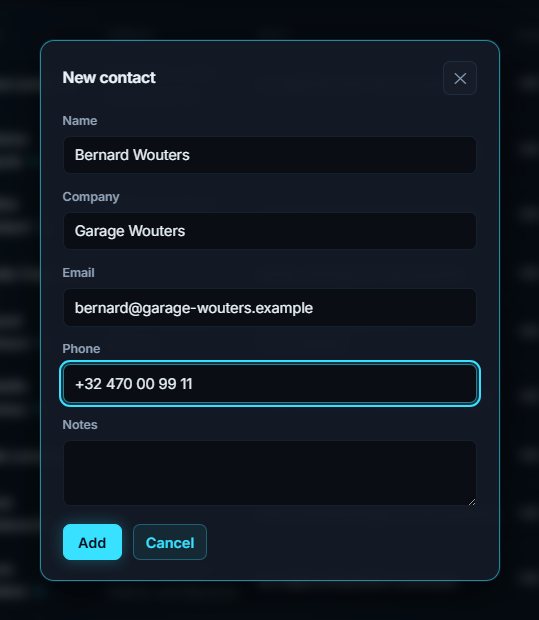
Just write to the assistant “Add Julie Martin, Park Bakery, 0478 12 34 56”: she prepares the record and asks you to confirm.
Calendar
All your appointments, those you book yourself and those the assistant suggests.
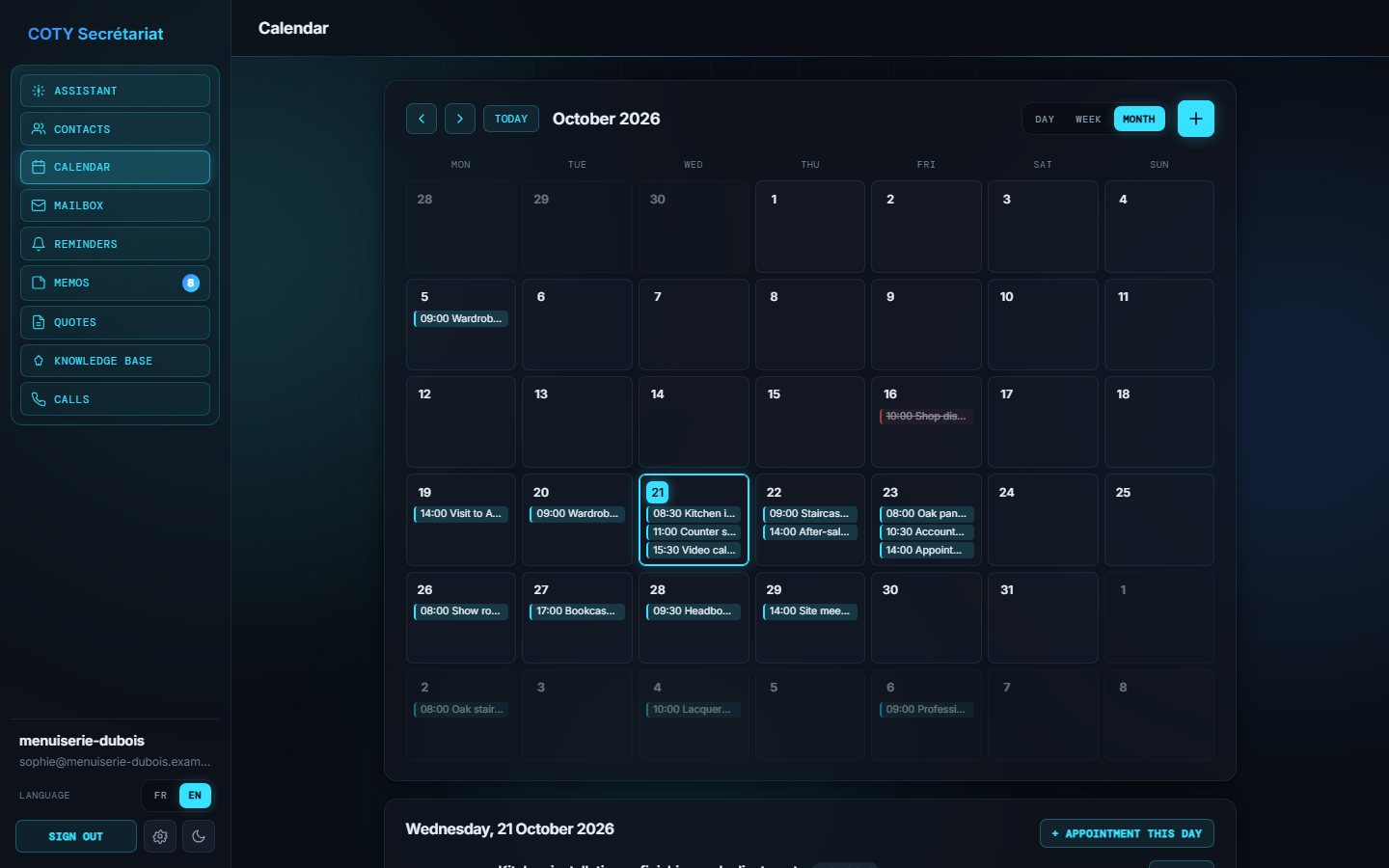
Navigating
- Choose the Day, Week or Month view.
- The ‹ › arrows move forward or back; Today returns to the current date.
- The right-hand panel details the selected day: time, title, location.
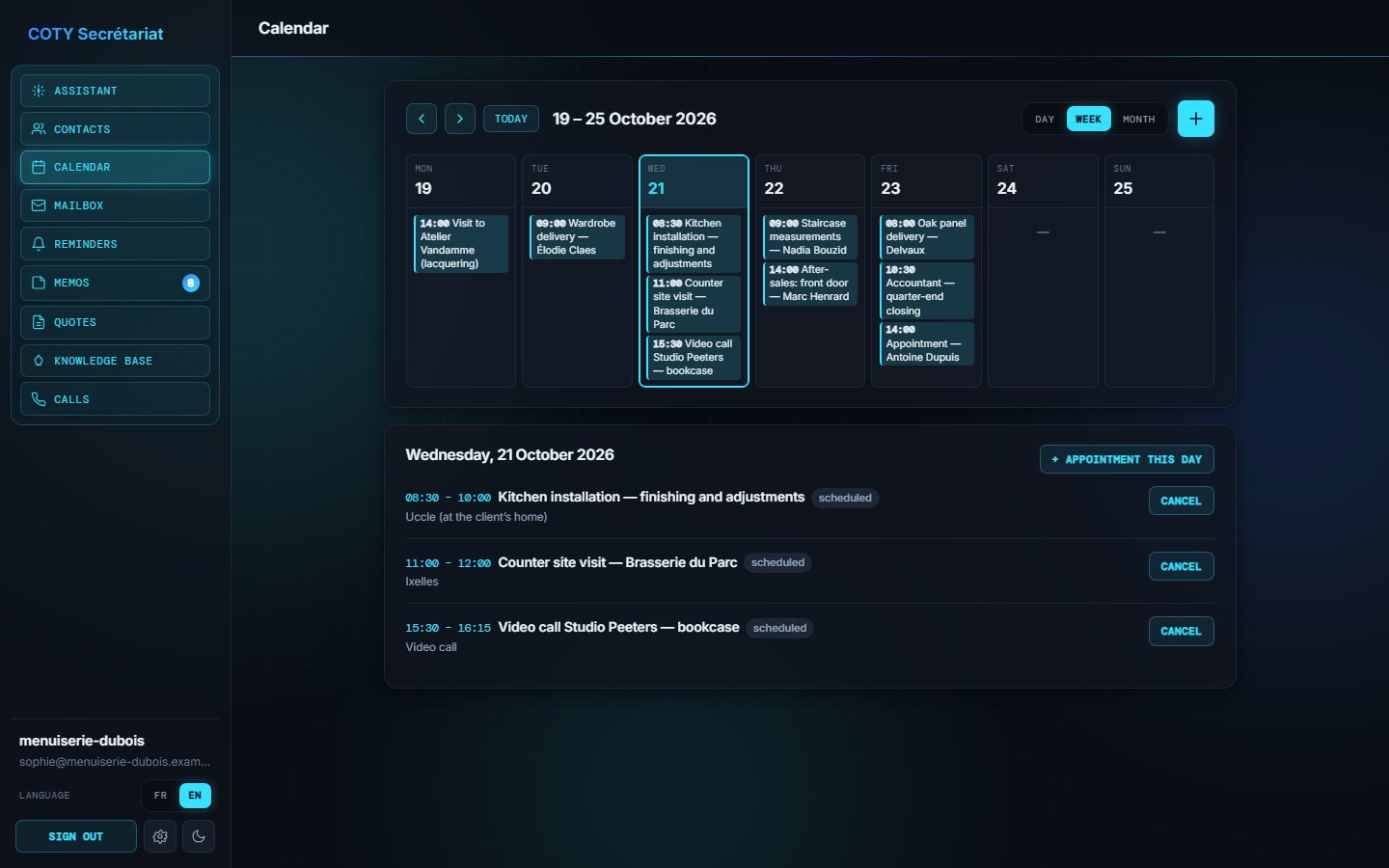
Adding an appointment
- Click + (or the “+” on a specific day).
- Enter the title, start, end and, if needed, the location.
- Click Add.
Suggested appointments
An appointment taken over the phone by the assistant shows the status proposed: it still needs your approval. To cancel an appointment, open the day and click Cancel.
Mailbox
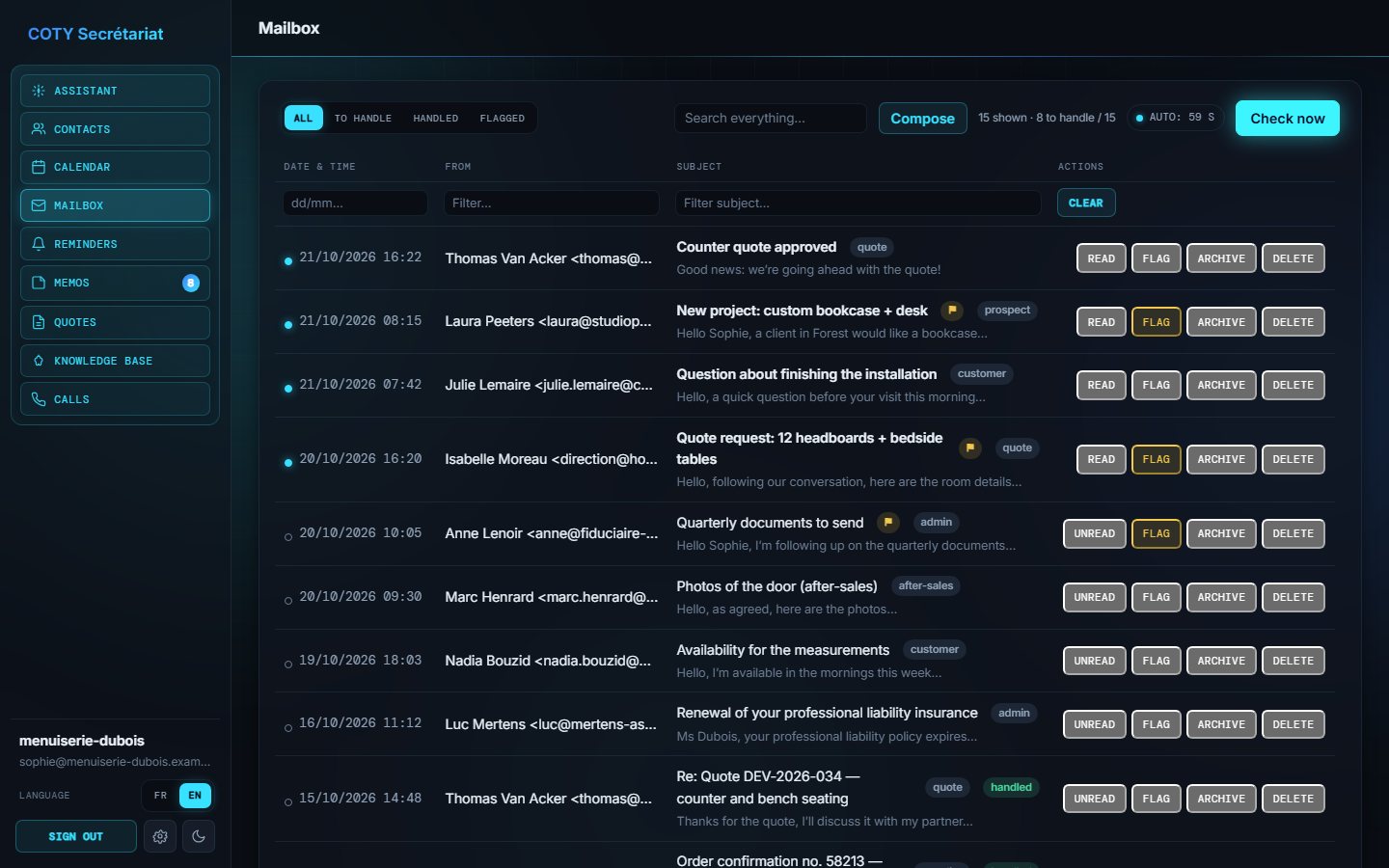
COTY Secrétariat checks your business mailbox every 60 seconds. You follow what is to handle and what is handled, without leaving the app.
Sorting and finding an email
- The All, To handle, Handled and Flagged filters show the right batch of messages, with their count.
- Search everything… searches the date, sender, subject and message preview.
- The fields under the column titles filter by date, sender or subject.
- The countdown shows the next check; Check now checks immediately.
Actions on each row
| Action | Effect |
|---|---|
| Read / Unread | Changes the read status. |
| Flag | Flags the message so you can find it in “Flagged”. |
| Archive | Removes the message from the list, without deleting it. |
| Delete | Moves the message to the trash, after confirmation. |
Reading, replying and forwarding
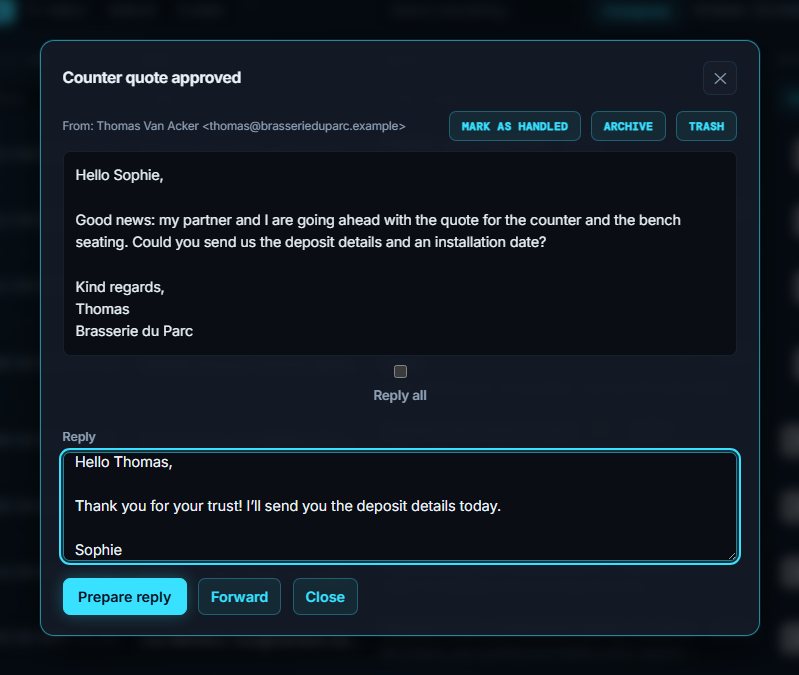
Click a message to open it: it is automatically marked as read.
- Write your text in Reply. Tick Reply all to include the people in copy.
- Click Prepare reply: the reply is saved as a draft.
- To forward, click Forward, enter the recipient and an optional note, then Create forward draft.
- Mark as handled files the message once the matter is settled; Archive and Trash are also available here.
Replies, forwards and new messages always go through the Drafts section, below the list: review them, then click Send.
Writing a new message
Compose opens the New message window (To, Cc, Bcc, subject, message). Create draft saves it as a draft: find it in the Drafts section below the list and click Send when it is ready.
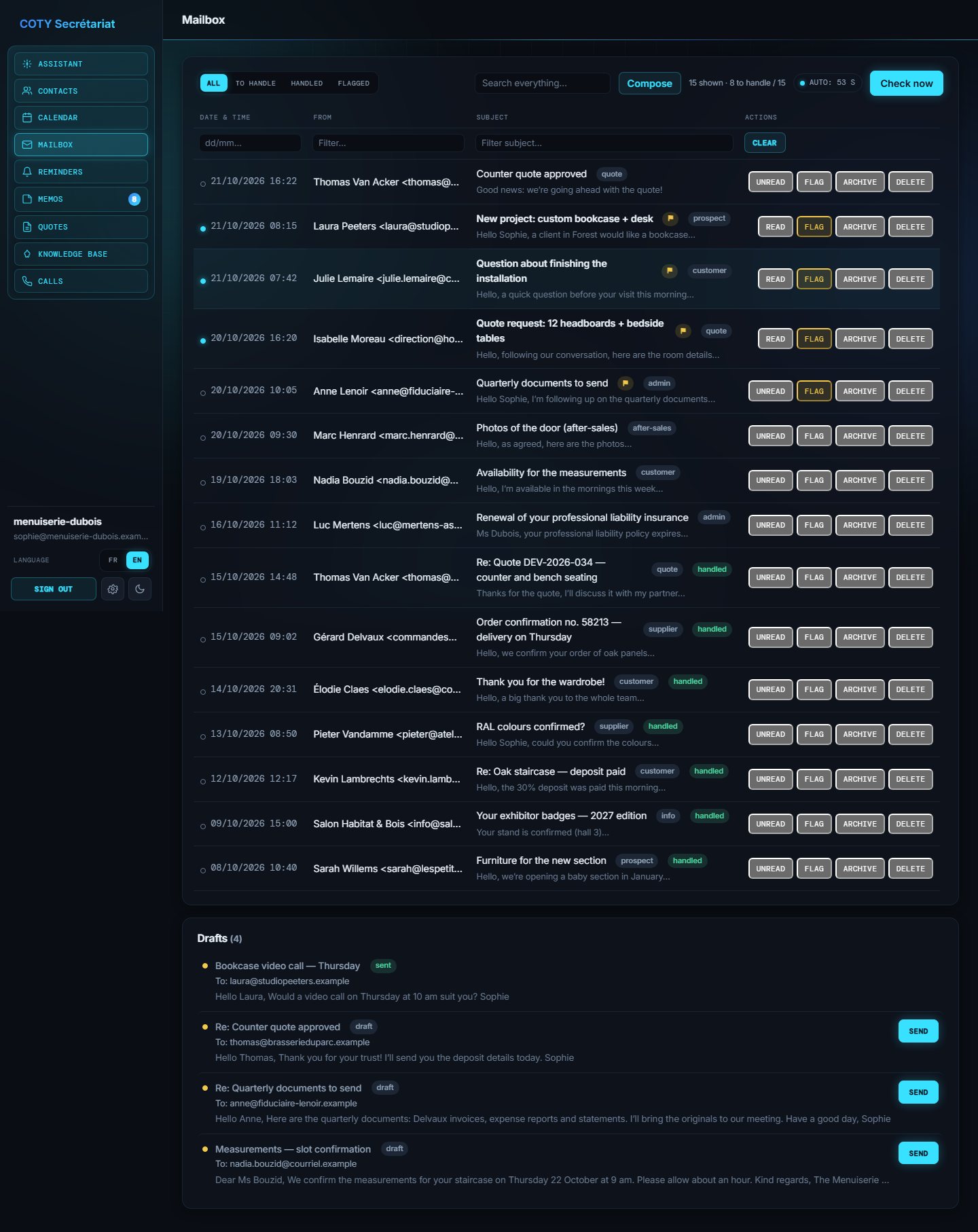
If a “Mailbox disconnected” banner appears (password changed, authorisation expired), click Reconnect and follow your provider's steps. No message is lost.
Reminders
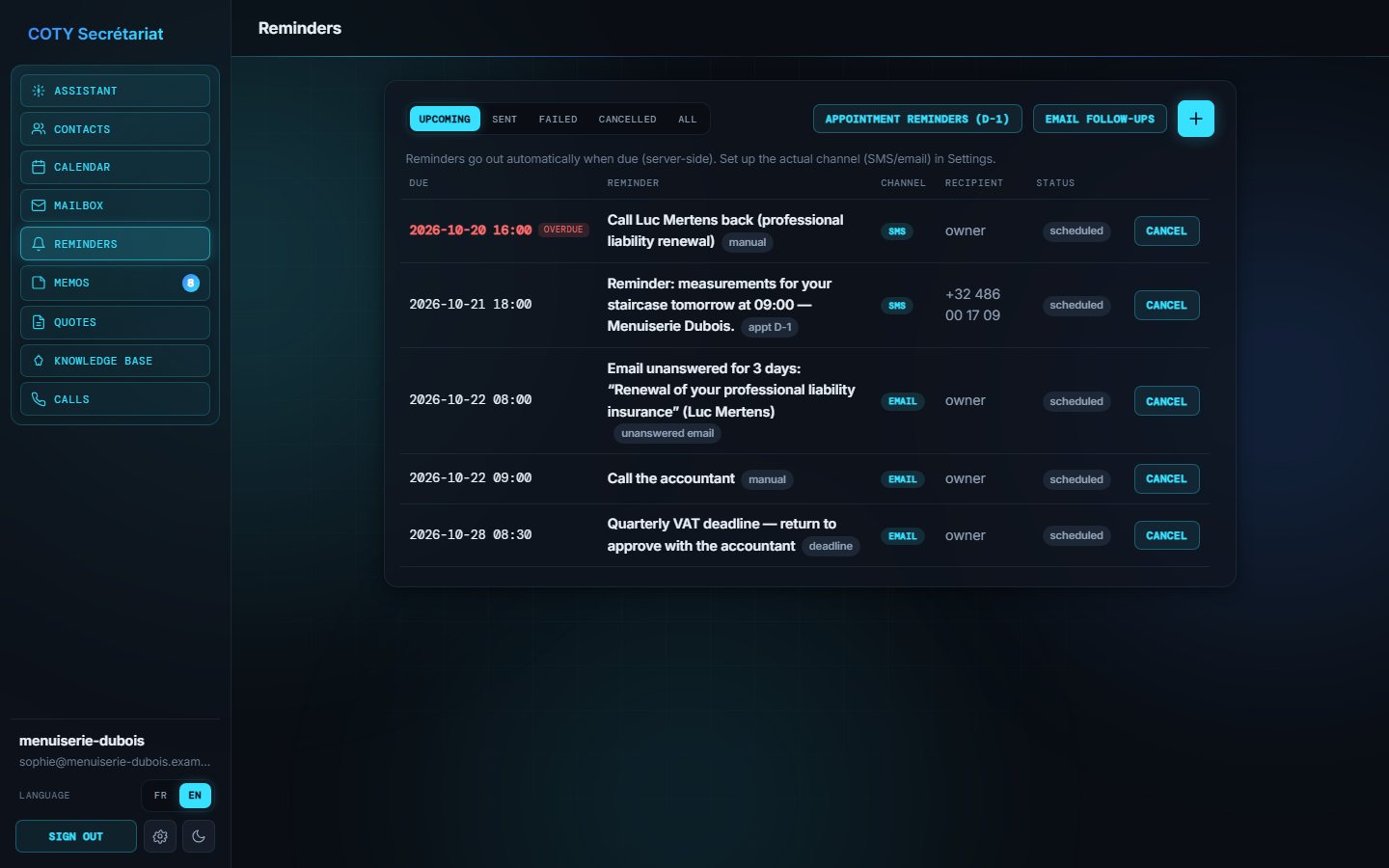
A reminder is a scheduled message that goes out by itself at the planned time, by email, text message or WhatsApp — for you or for a client.
Creating a reminder
- Click +.
- Write the message, choose the channel (email, text message, WhatsApp) and the due date.
- Leave the recipient empty to send it to yourself; otherwise enter an email or a number.
- Click Schedule.
Automatic reminders
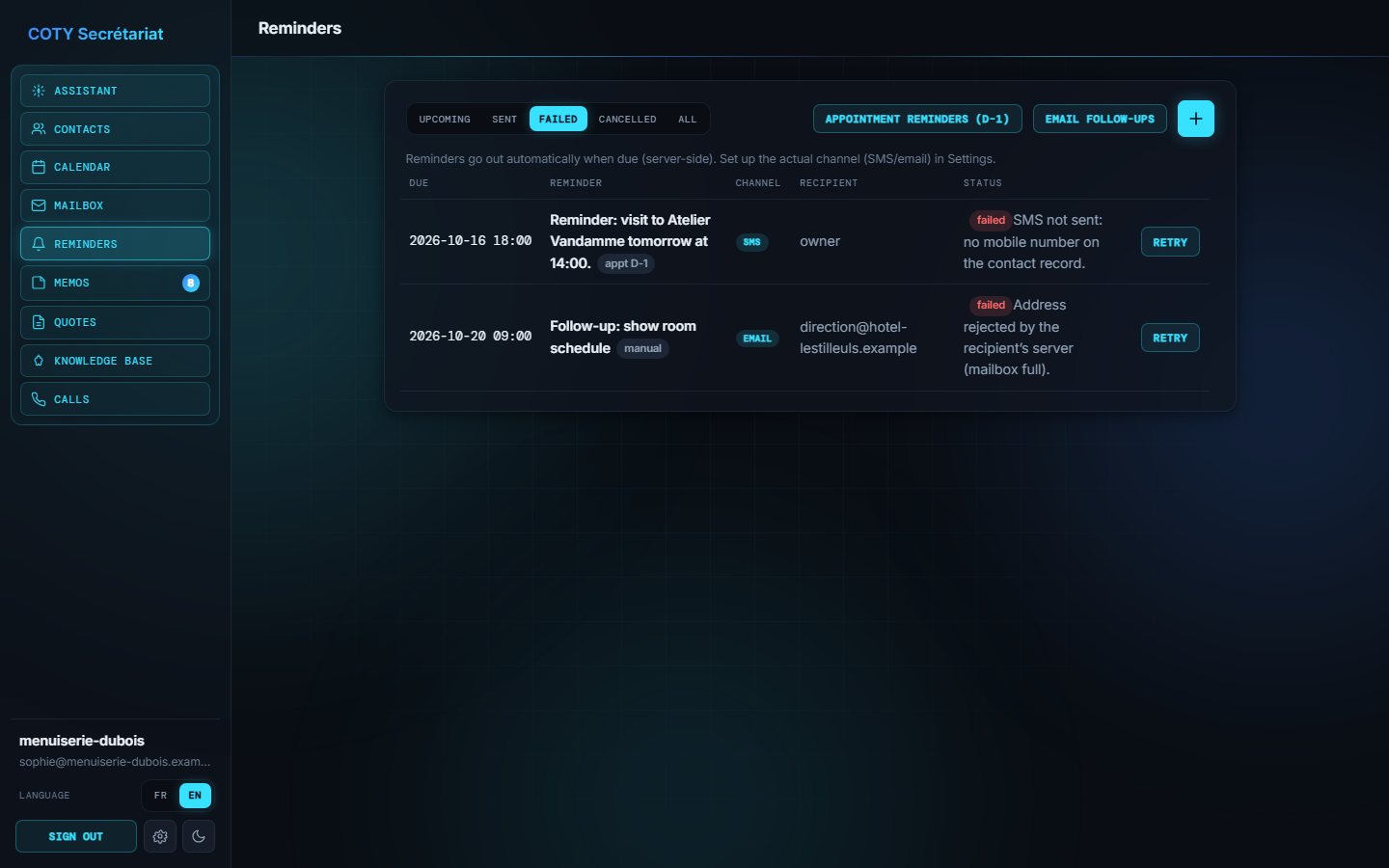
- Appointment reminders (D-1) schedules a reminder the day before each upcoming appointment linked to a contact.
- Email follow-ups sends you a reminder for each email left unhandled for 3 days.
Tracking delivery
The Upcoming, Sent, Failed, Cancelled and All filters sort the reminders. An upcoming reminder can be cancelled; a failed reminder shows the reason (invalid number, for example) and can be retried in one click.
Memos
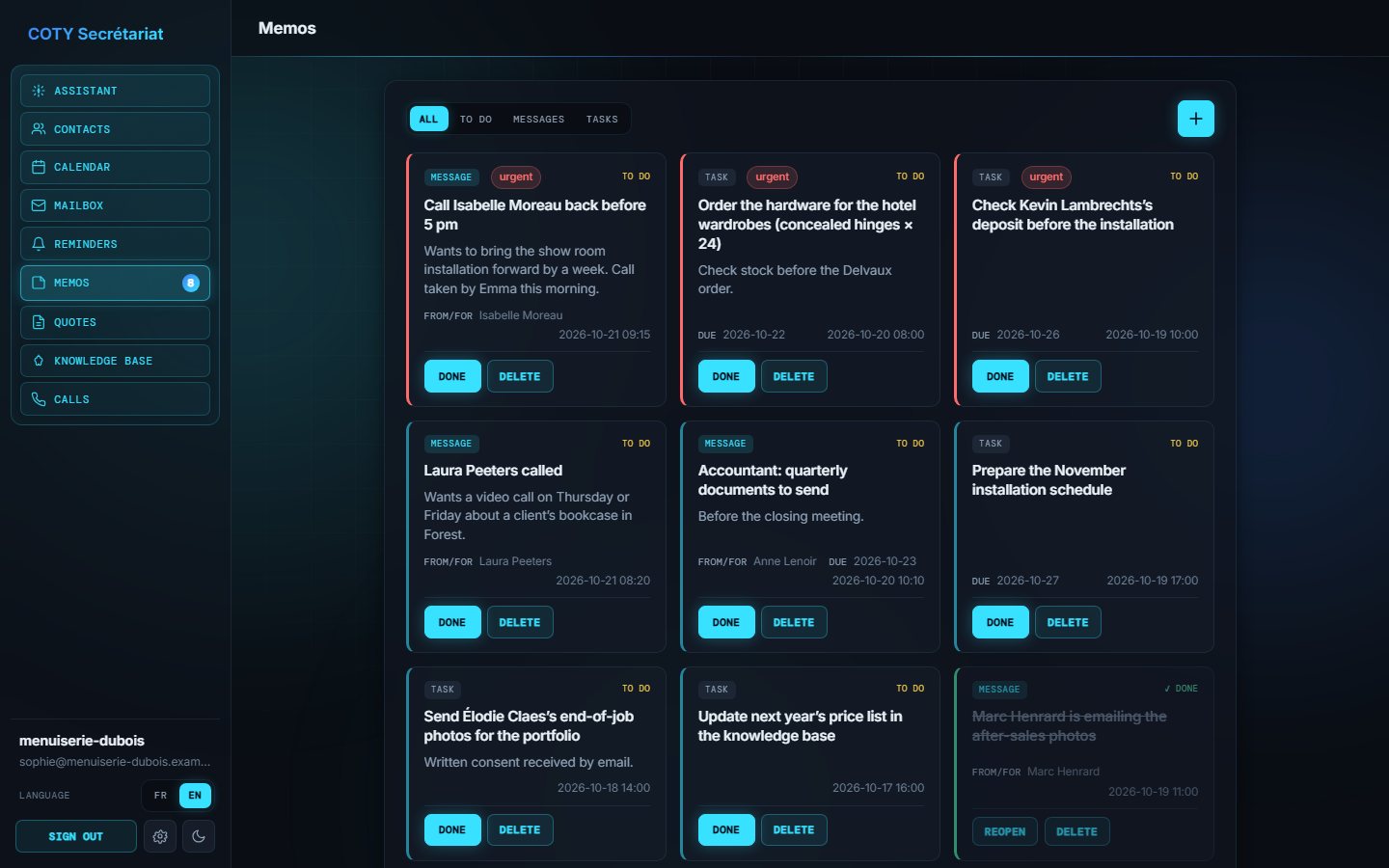
The board of things not to forget: messages taken for you (on the phone in particular) and tasks to do.
Creating a memo
- Click + and choose the type: Task or Message for the boss.
- Choose the priority (normal or urgent) and write the subject.
- For a message: choose the contact concerned or type the caller's name. For a task: add a due date if needed.
- Click Add.
Handling memos
Filter by All, To handle, Messages or Tasks. Click Done once it is settled (the menu counter goes down); Reopen puts it back in progress, Delete removes it.
Quotes
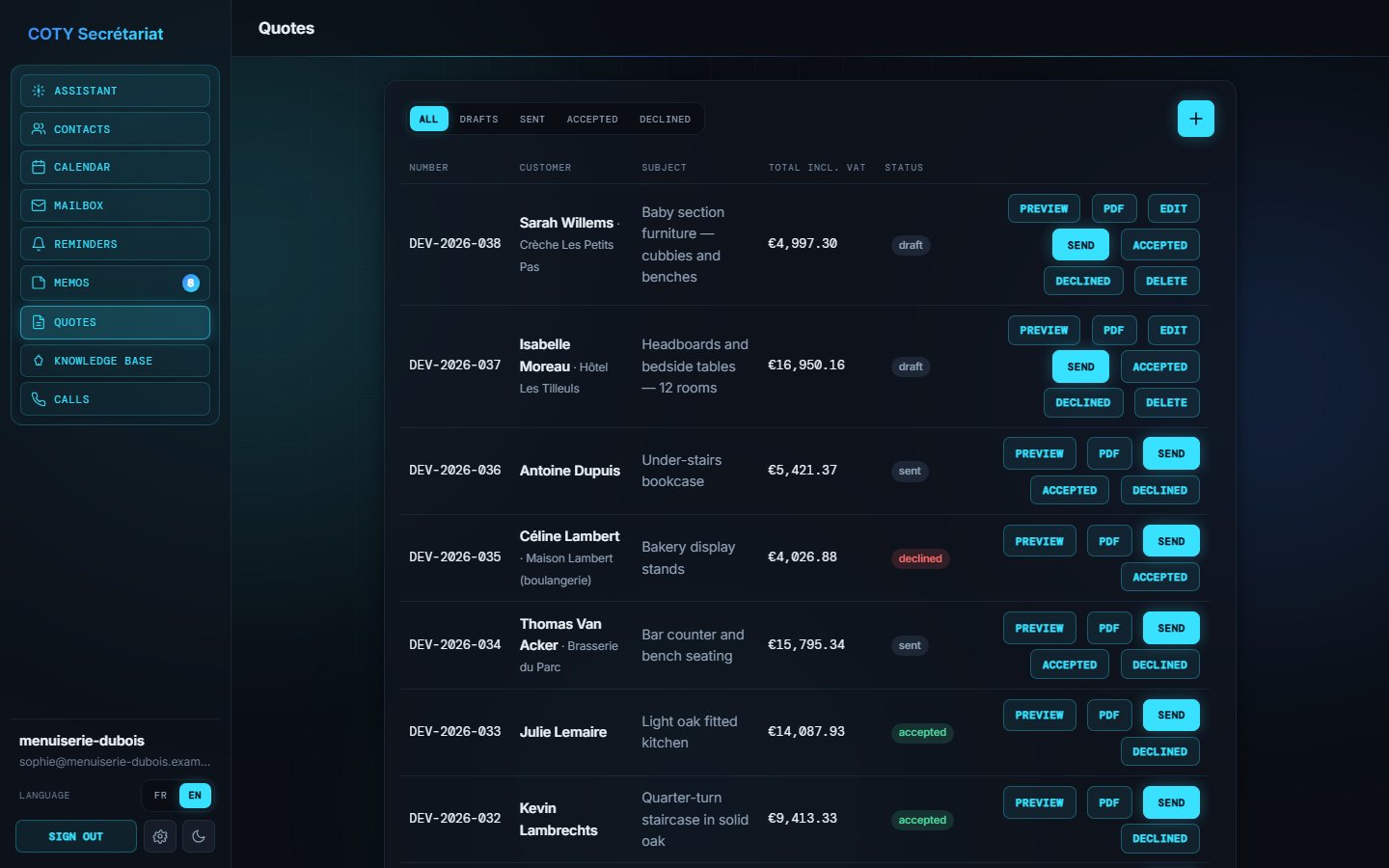
Create clean, compliant quotes with Belgian VAT in a few clicks — or ask the assistant to do it.
Creating a quote
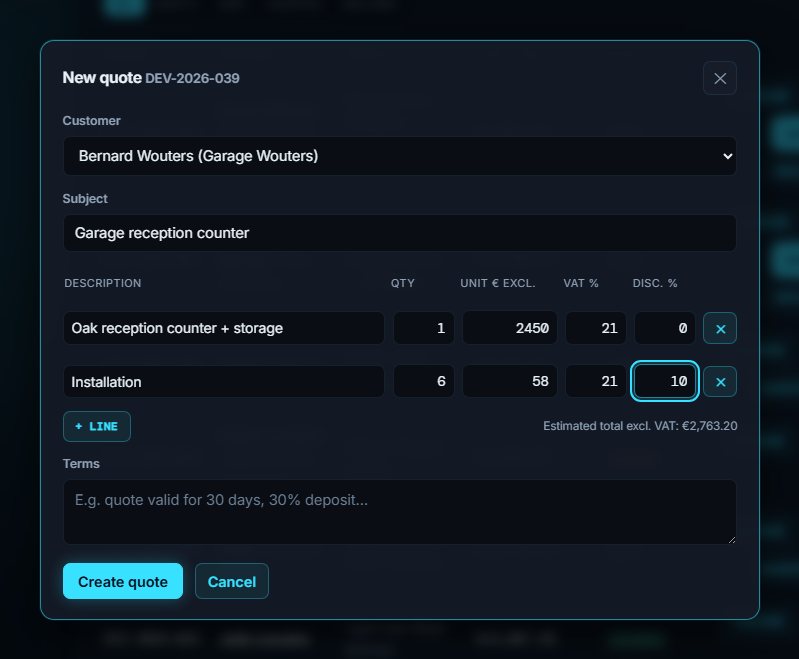
- Click +. The next number is assigned automatically.
- Choose the client from your contacts or enter their name and email.
- Enter the subject (e.g. “Made-to-measure wardrobe”).
- Add the lines: description, quantity, unit price excl. VAT, VAT rate (21% by default, editable per line: 6%, 12%…) and any discount in %. + Line adds one.
- Add your terms (validity, deposit…), check the estimated total, then Create quote. The quote is created as a draft.
A quote's life cycle
| Status | What you can do |
|---|---|
| Draft | Edit, Delete, preview, send. |
| Sent | The client has received the PDF by email. Click Accepted or Declined depending on their answer. |
| Accepted | The quote is signed: time to deliver. |
| Declined | Kept in the history, for your statistics. |
- Preview shows the quote exactly as the client will see it.
- PDF downloads the document.
- Send emails it to the client, PDF attached, after your confirmation.
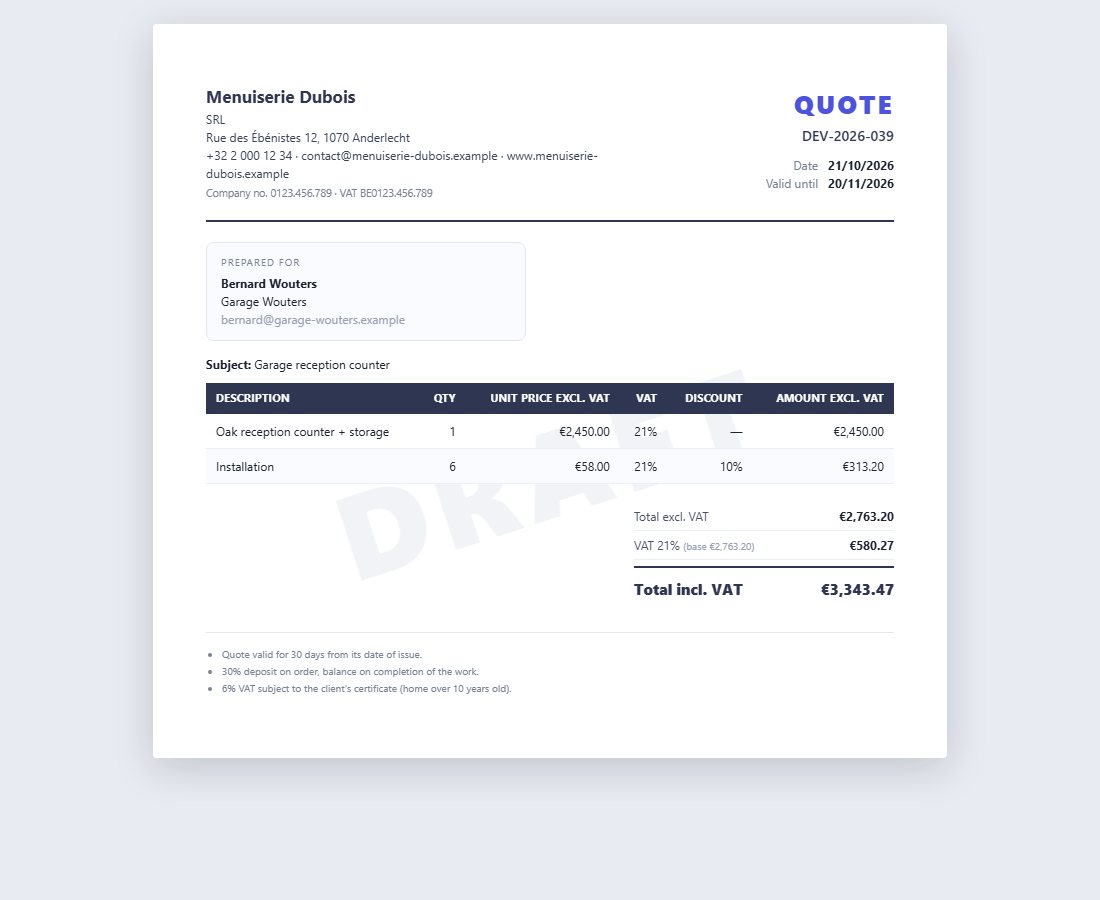
Fill in Settings → My business first: your company name, company number, VAT number and IBAN will appear automatically on all your quotes.
Knowledge base
The knowledge base is your business's memory: opening hours, prices, procedures, habits. The assistant consults it to give the right answer — including on the phone — and adds to it when she learns something lasting.
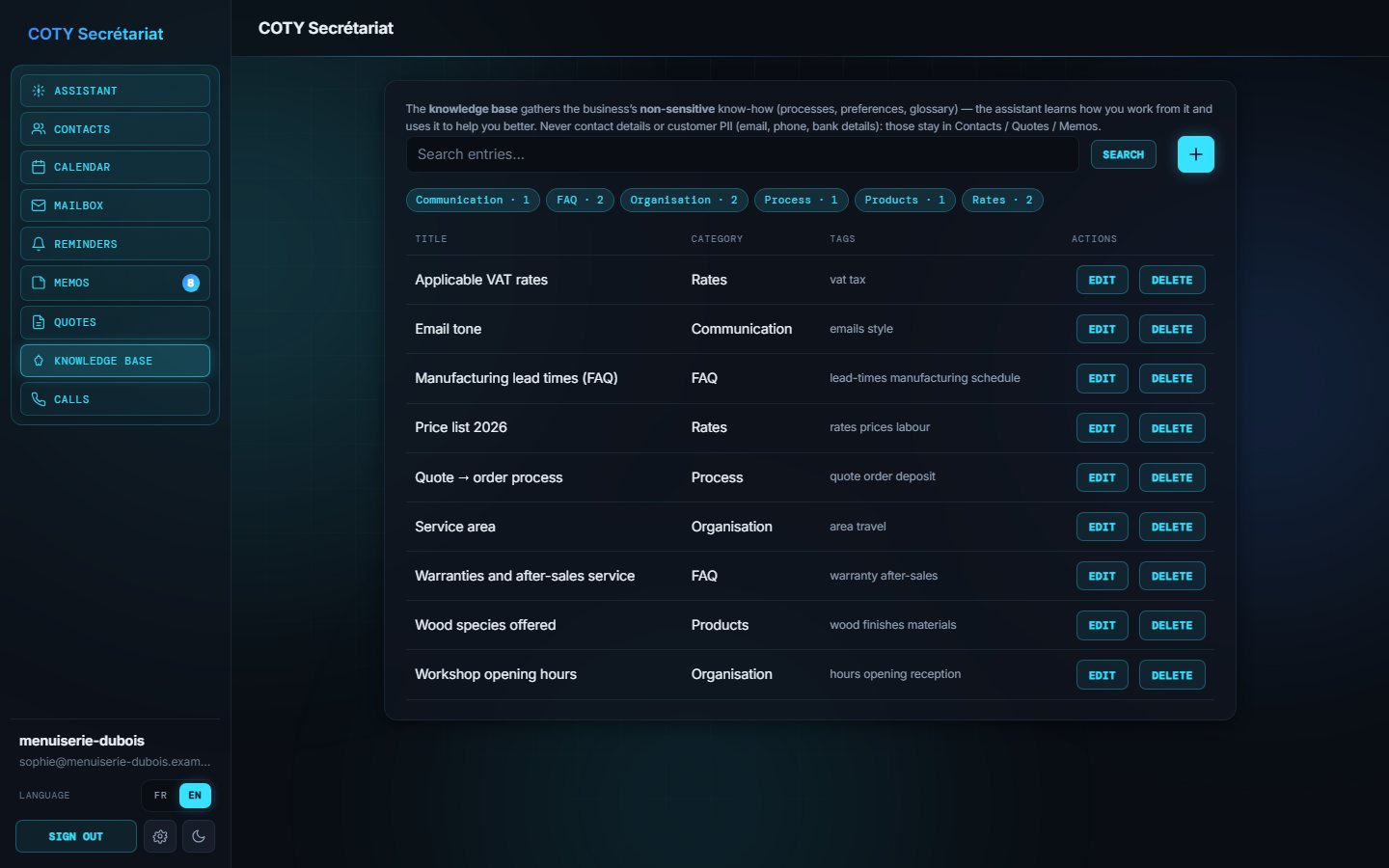
Adding a card
- Click +, give a title and a category.
- Add tags (e.g.
clients, prices) to find it easily. - Write the content. To link two cards, write the other card's title in double brackets:
[[Opening hours]]. - Click Create.
The knowledge base automatically refuses email addresses, phone numbers, IBANs, VAT or card numbers. That information belongs in contacts and quotes, where it is encrypted.
Calls and phone reception
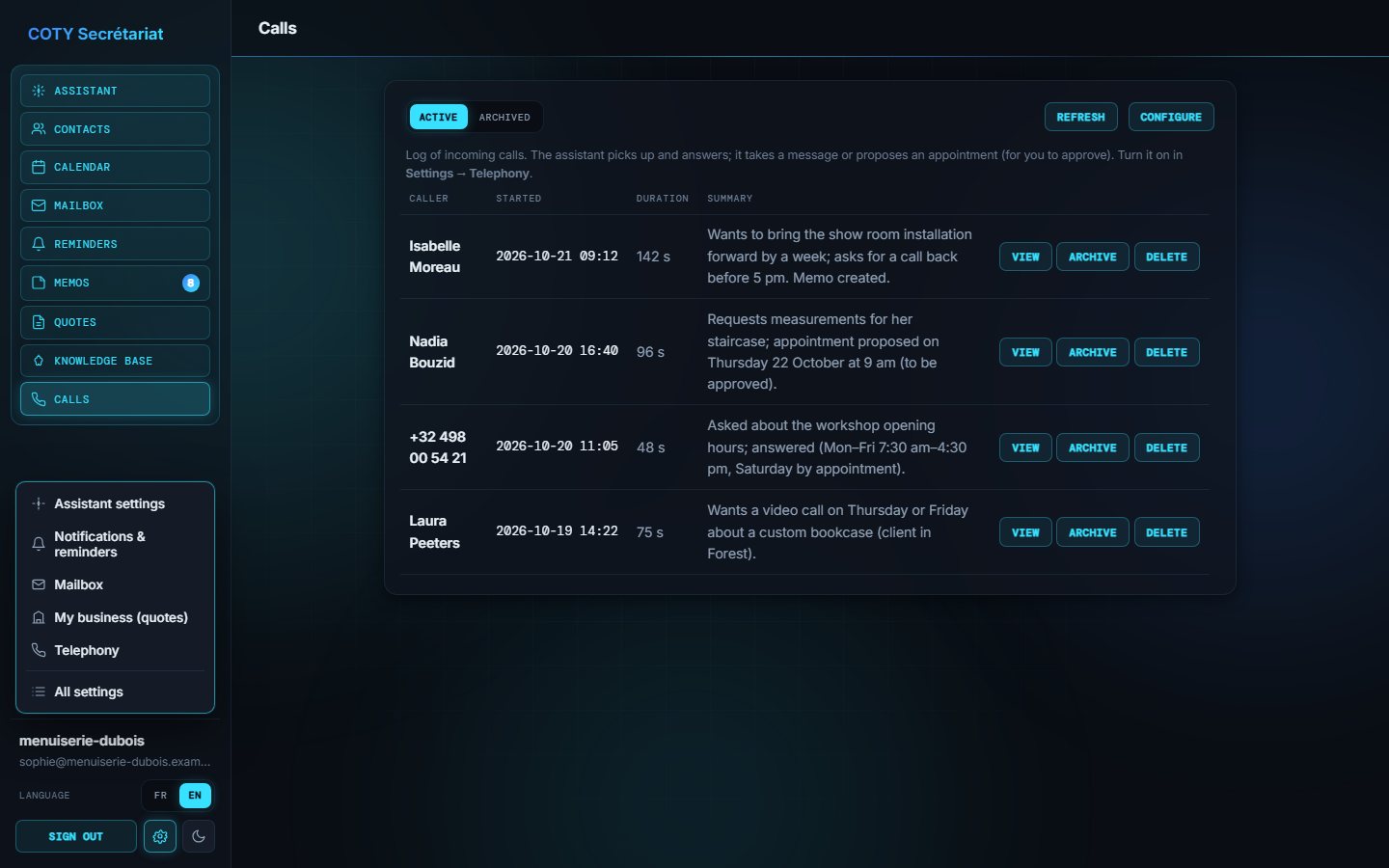
When phone reception is on, the assistant picks up, answers out loud, takes a message or suggests an appointment. Every call is summarised here.
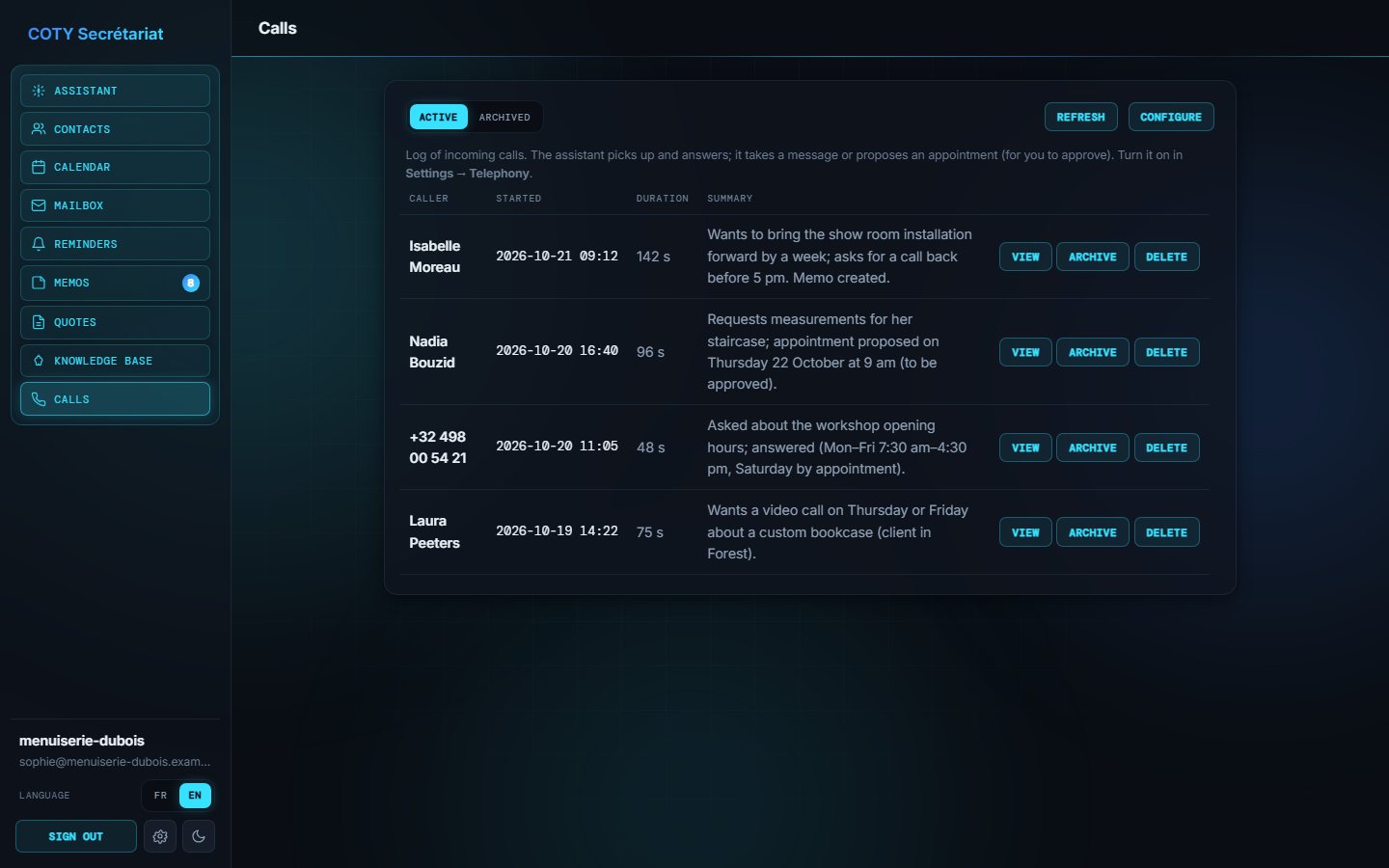
Reviewing a call
Click View to read the summary written by the assistant and the full transcript of the conversation. You can then archive it (Archived tab) or delete it.
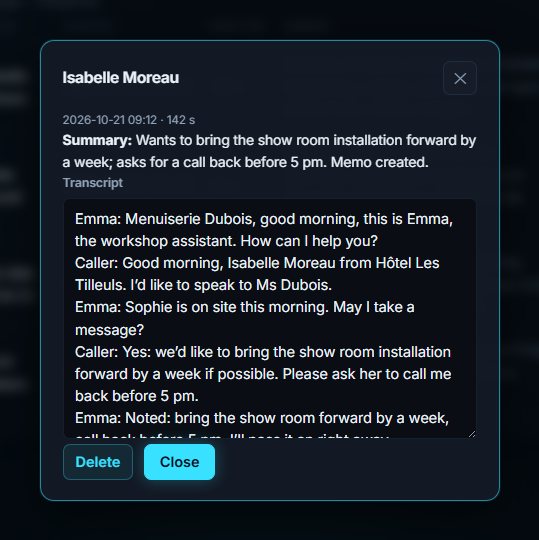
On the phone, she stays careful: she informs (opening hours, services), takes a message and suggests an appointment for you to approve. She never sends an email or a quote during a call.
Settings
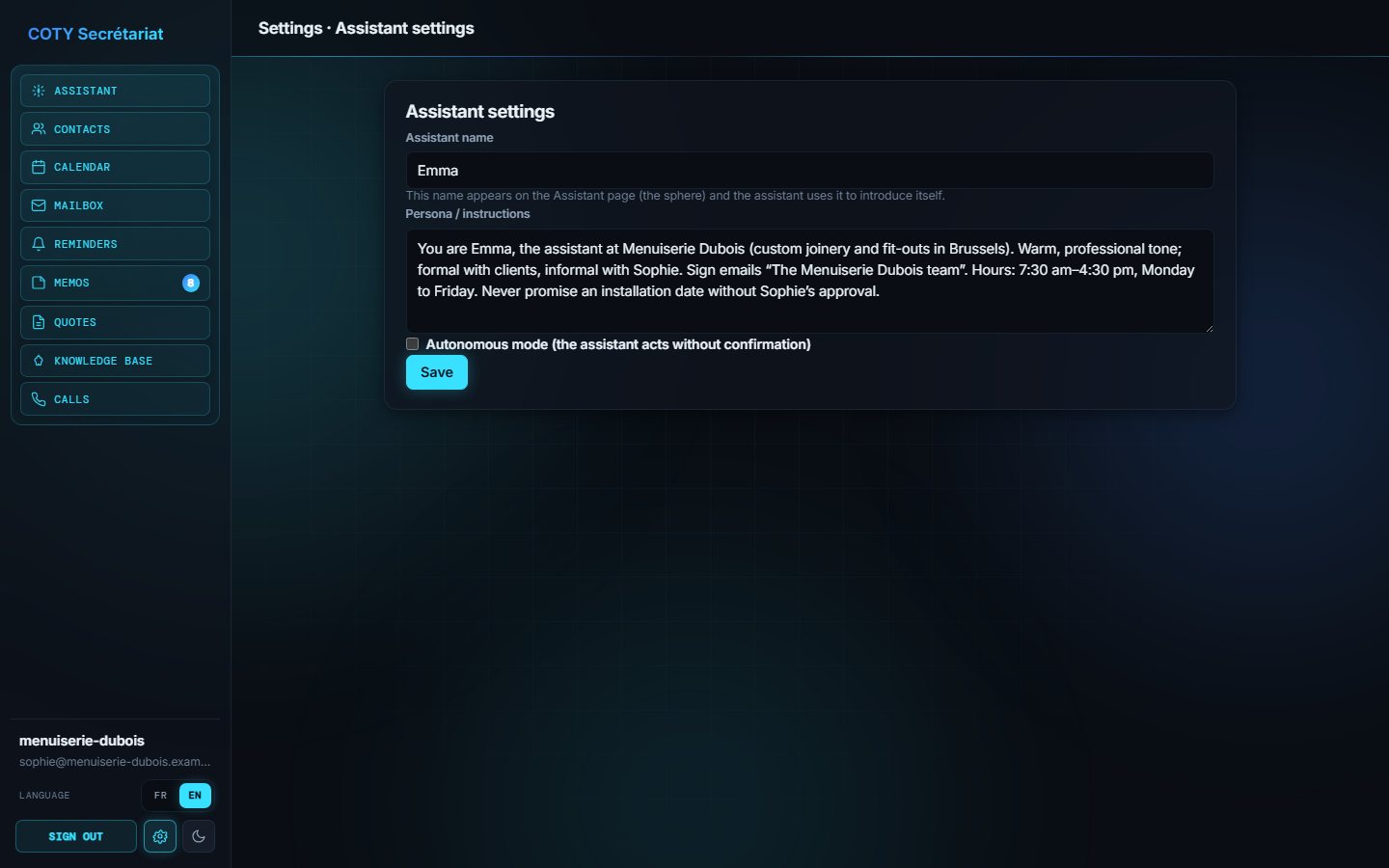
Settings open from the gear wheel at the bottom of the menu: choose a section, or All settings. Each section is saved separately with its own Save button.
 12
12Assistant settings
- Assistant's name: shown on the Assistant page; she uses it to introduce herself.
- Persona / instructions: tone, signature, opening hours, house rules (“always be formal”, “sign as The Dubois team”…).
- Autonomous mode: when ticked, the assistant acts without asking for confirmation.
Notifications & reminders
Enter the boss's email and phone: they are the default recipients of reminders and follow-ups. Text messages and WhatsApp use a sending account set up when the service is installed.
Mailbox
Recommended: click Connect Gmail or Connect Outlook and accept the requested permissions. No password is stored.
Other host (OVH…): choose the matching preset; the servers fill in by themselves. Enter your address and mail password, then click Test connection — no email is sent during the test.
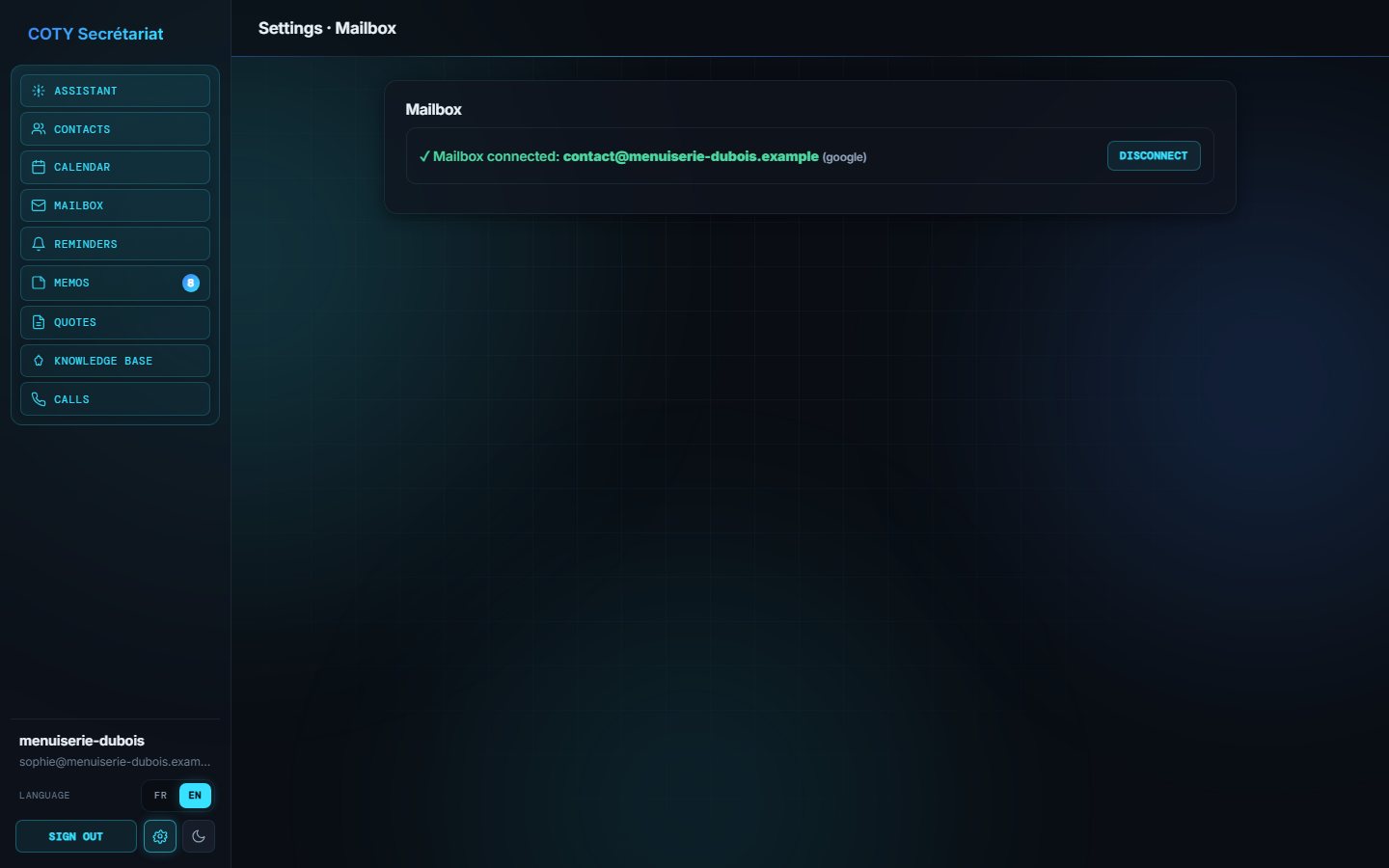
With manual setup, Gmail requires an “app password” (2-Step Verification turned on). The one-click connection avoids this step.
My business (quotes)
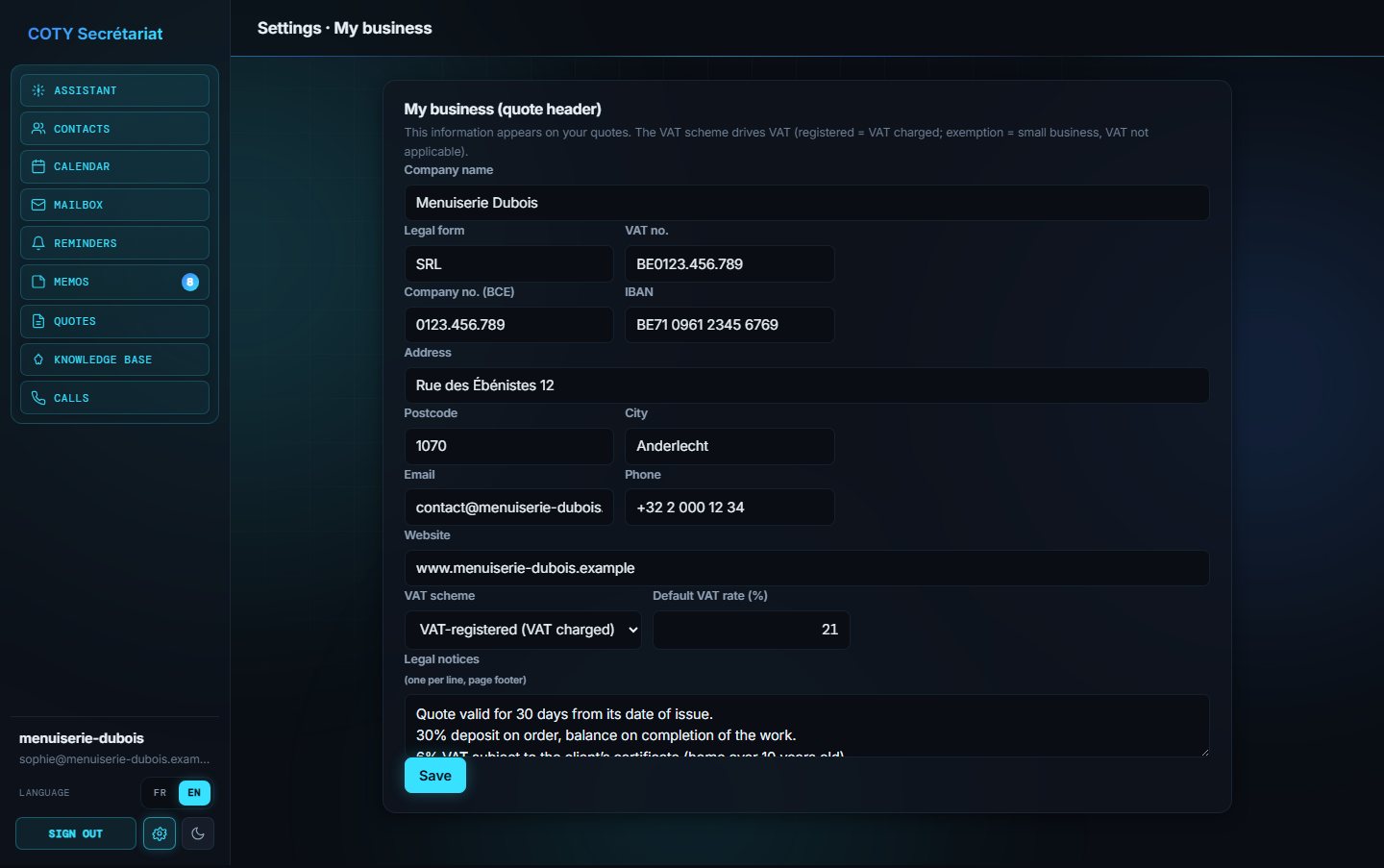
Company name, legal form, address, email, phone, website, company number (BCE), VAT number, IBAN, default VAT rate and legal mentions. The VAT scheme drives the VAT on quotes: VAT-registered (VAT applied) or exemption (small business, VAT not applicable, legal mention added).
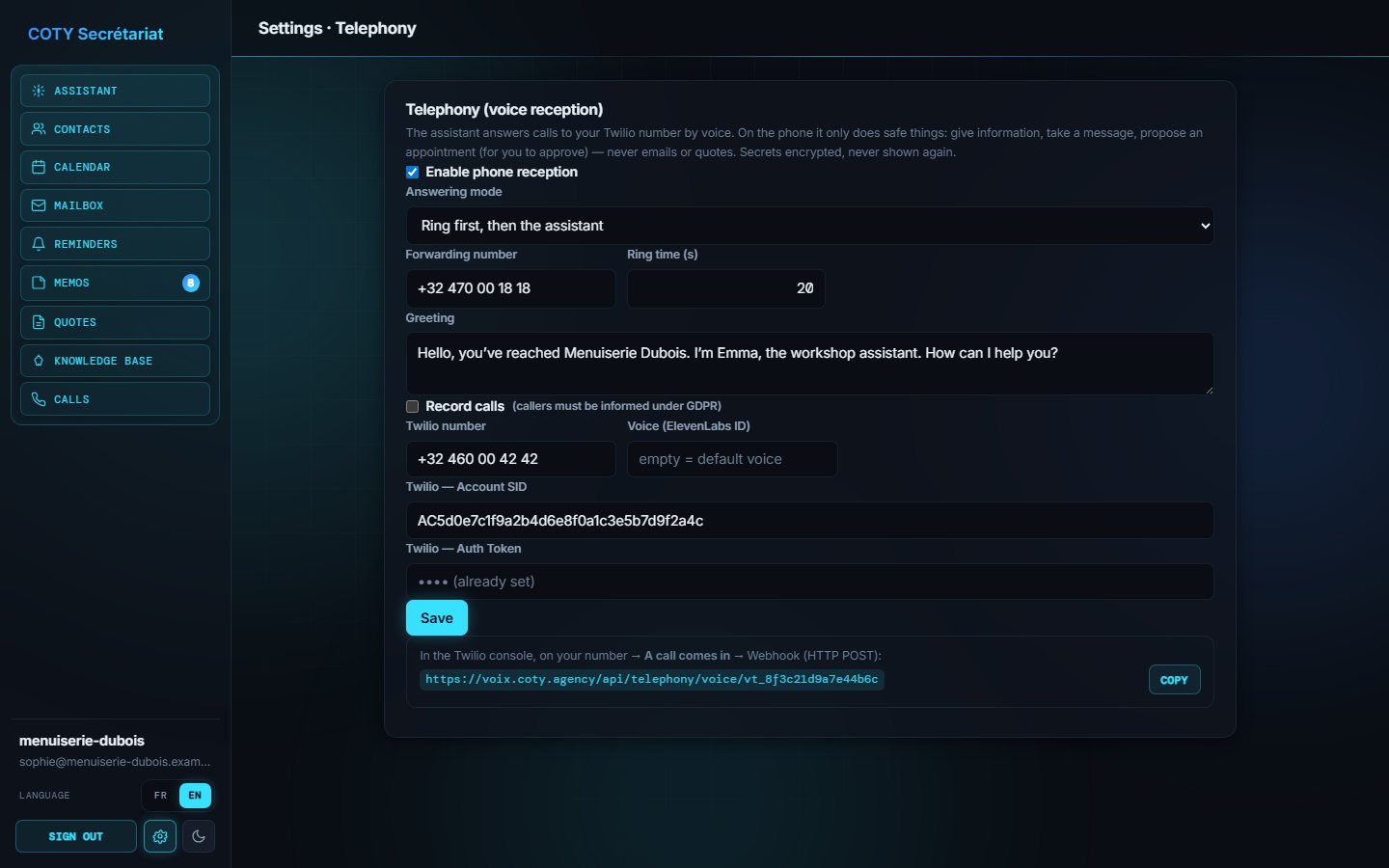
Telephony
| Reception mode | Behaviour |
|---|---|
| The assistant answers | The assistant picks up every call directly. |
| Ring first, then the assistant | Your phone rings for the chosen number of seconds; if nobody answers, the assistant takes over. |
| Forward immediately | The call is forwarded to your number, without the assistant. |
- Greeting message: the sentence spoken at the start of the call.
- Record calls: only turn this on if you inform your callers (GDPR requirement).
- The number, the voice and the technical credentials are set up by COTY Agency when the service is installed.
Security and privacy
- Mandatory two-factor authentication: a password alone is never enough to get in.
- Isolated data: each business has its own sealed workspace; another client can neither see nor guess your data.
- Encryption: contacts, emails, quotes and technical credentials are encrypted. Passwords and keys are never displayed again.
- Human approval: in the default mode, nothing is sent or deleted without your click.
- Knowledge base without sensitive data: a safeguard refuses contact details and banking identifiers.
- GDPR: you remain responsible for your clients' data; COTY Agency acts as a processor. Recording calls requires informing callers.
Use a unique password, sign out on a shared computer, and alert support immediately if you lose your phone or notice suspicious access.
FAQ and troubleshooting
- My 6-digit code is rejected.
- Make sure your phone's time is set automatically: codes depend on the exact time. Wait for the next code and try again.
- I lost my phone.
- Contact support: once your identity is verified, we reset your two-factor authentication and you scan a new QR code.
- My emails no longer arrive in the app.
- Check whether a “Mailbox disconnected” banner is shown and click “Reconnect”. With manual setup, run “Test connection” again in Settings → Mailbox.
- The assistant does not do what I ask.
- Rephrase with who, what and when (“an appointment with Mr Renard on Thursday at 10 am at the workshop”). Also check the “Actions to confirm” panel: the action may be waiting for your approval.
- A reminder failed.
- Open the “Failed” filter to read the reason (invalid address or number, for example), correct it if needed, then click “Retry”.
- The quote PDF shows the wrong address.
- Complete Settings → My business, then generate the PDF again.
- Can I use COTY Secrétariat on my phone?
- Yes, the interface adapts to small screens. For writing quotes, a computer remains more comfortable.
- Some messages from the server are in French.
- A few technical error messages are not translated yet. Contact support if one of them is unclear.
- Who can see my data?
- Only you and the people you give access to. COTY Agency only accesses it for support, at your request.
Support
A question, a problem, an idea for improvement? Write to us:
- Email: contact@coty.agency
- Form: coty.agency/en/contact.html
- Online demo: coty.agency/demo-cotysecre
We reply within one business day. To speed things up, include your workspace name, what you were doing and, if possible, a screenshot — but never send us a password or a security code.