
Overview
Orbit brings together two applications under a single account: the CRM, where you track your prospects all the way to signature, and the Prospector, which finds new prospects and handles first contact on LinkedIn.
| Application | What you do there |
|---|---|
| CRM | Dashboard, pipeline by stage, prospect records, automatic email follow-ups, email templates, team and settings. |
| Prospector | Search missions (Google Maps, LinkedIn, Leads Finder), analysis of a LinkedIn profile from its URL, LinkedIn invitations and first messages. |
A prospect's typical journey
- A Prospector mission finds companies or decision-makers and scores them (from 1 to 10).
- The best profiles become prospect records in the CRM.
- Orbit sends the first contact, then follow-ups if the prospect does not reply.
- You move the prospect through the pipeline: in discussion, quote sent, negotiation… all the way to Client.
What you need
- A recent browser (Chrome, Edge, Firefox or Safari).
- An authenticator app on your phone (Google Authenticator, Microsoft Authenticator, Authy…).
- Your business mailbox (Gmail, Outlook / Microsoft 365, OVH or any other SMTP server).
- For LinkedIn outreach: your LinkedIn account and the Orbit desktop agent installed on your Windows computer.
First sign-in and two-factor authentication
Accounts are created by your organisation's administrator: you receive an invitation by email. Signing in combines a password and a 6-digit code.
Activate your account
- Open the link in the invitation email. The Welcome to Orbit screen appears.
- Choose your password: at least 10 characters, with at least one letter and one digit. Confirm it, then click Set password and continue.
- On the Enable two-factor authentication screen, scan the QR code with your authenticator app (or enter the manual key).
- Enter the 6-digit code shown by the app, then Enable and sign in.
Signing in afterwards
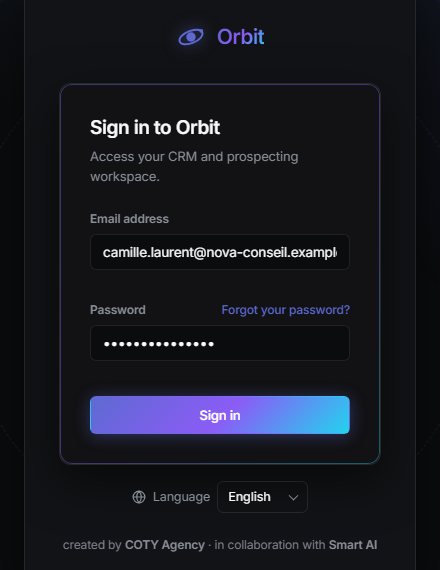
- Enter your email address and password, then Sign in.
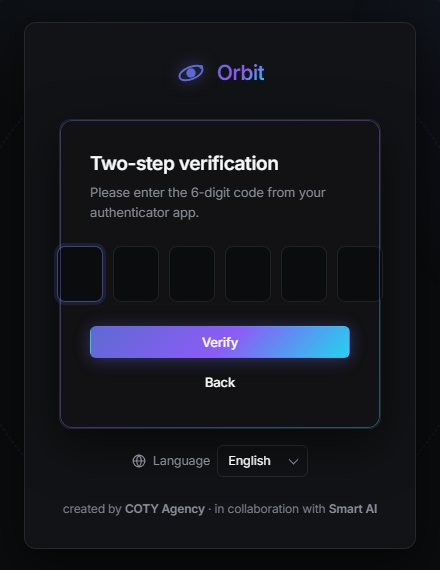
- Two-step verification screen: type the 6-digit code from your app and click Verify.
Forgotten password
Click Forgot your password?, enter your address and Send the link. The link you receive by email opens the screen for choosing a new password. Your two-factor authentication is kept.
Signing out
At the bottom of the left menu, under your organisation name, your role and your email: Sign out. For security, an expired session automatically takes you back to the sign-in screen.
Interface, languages and theme
The CRM menu is organised into four groups. The entries you see depend on your permissions.
| Group | Entry | Purpose |
|---|---|---|
| Overview | Dashboard | Your sales metrics at a glance. |
| Prospecting | Pipeline | Prospects in columns, by stage. |
| Prospects | The full list, filterable and exportable. | |
| Prospecting | Opens the Prospector in a new tab (no need to sign in again). | |
| Agent | Installation of the desktop agent for LinkedIn. | |
| Communication | Follow-ups | The log of every email sent. A red badge flags failures. |
| Administration | Settings | Account, sending mailbox, templates, bin. |
| Users | Invite colleagues and set their permissions. | |
| Organisation | Your workspace's information. | |
| Legal notice | Terms of use and data policy. |
Changing the language
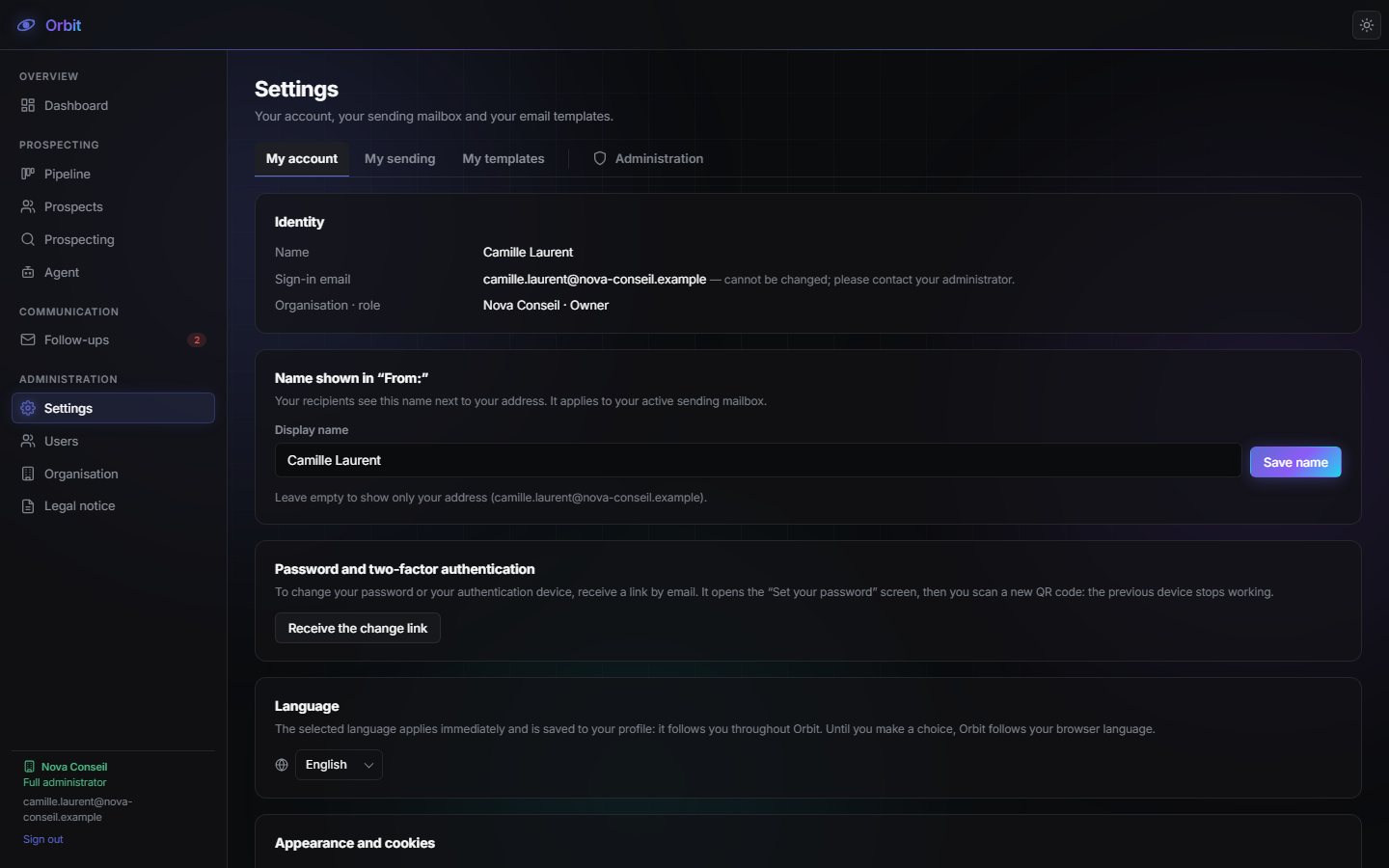
Orbit is available in English, French and Spanish. Choose the language on the sign-in screen or in Settings → My account → Language. The change applies immediately, is saved to your profile and also applies to the Prospector.
Light or dark theme
The sun / moon button at the top right switches the theme. In Settings → My account, you can also choose Same as system.
Orbit uses neither advertising nor audience measurement. The Cookies button lets you choose what is remembered (theme preference, fonts). Items needed to sign in always stay active.
Dashboard
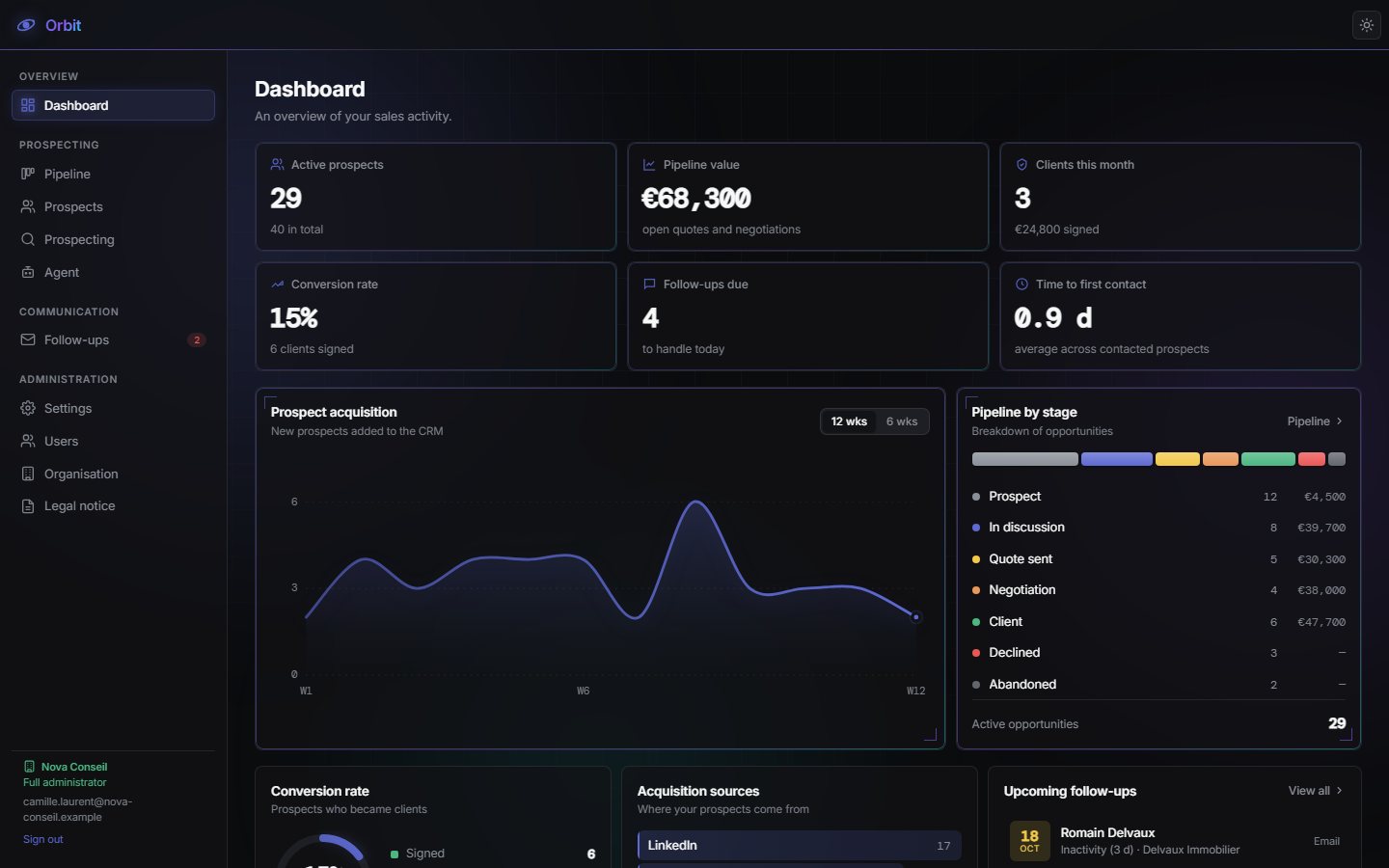
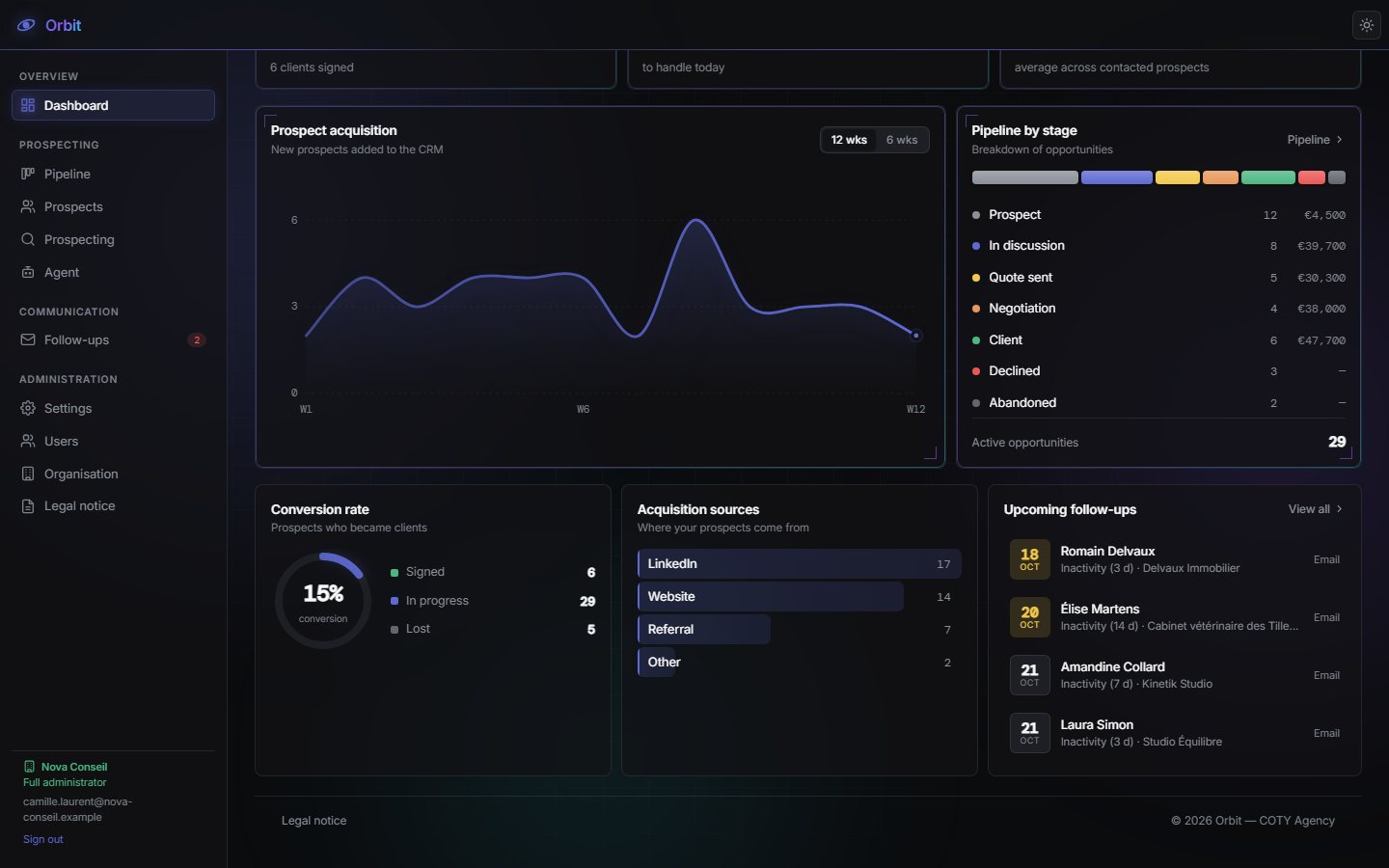
The dashboard opens every time you sign in: an overview of your sales activity.
 1234567
- 1Menu grouped into Overview, Prospecting, Communication, Administration.
- 2Key metrics: six figures kept up to date.
- 3Acquisition: new prospects per week (12 or 6 weeks).
- 4Pipeline by stage, with the value of each stage.
- 5Red badge: failed follow-ups to deal with.
- 6Your account: organisation, role, email and sign-out.
- 7Theme, light or dark.
The six metrics
| Metric | What it measures |
|---|---|
| Active prospects | Prospects currently being followed (excluding clients, declined and abandoned). |
| Pipeline value | The total of open quotes and negotiations. |
| Clients this month | Prospects signed this month, and the amount signed. |
| Conversion rate | The share of prospects who became clients. |
| Follow-ups due | Follow-ups to handle today. |
| Time to first contact | The average time between a prospect's arrival and the first contact. |
The charts
- Prospect acquisition: new prospects per week (hover over a point for details).
- Pipeline by stage: how opportunities are spread; the Pipeline link opens the board.
- Conversion: signed, in progress and lost.
- Acquisition sources: where your prospects come from (LinkedIn, referral, website…).
- Upcoming follow-ups: the next emails to go out; View all opens the follow-up log.
Pipeline
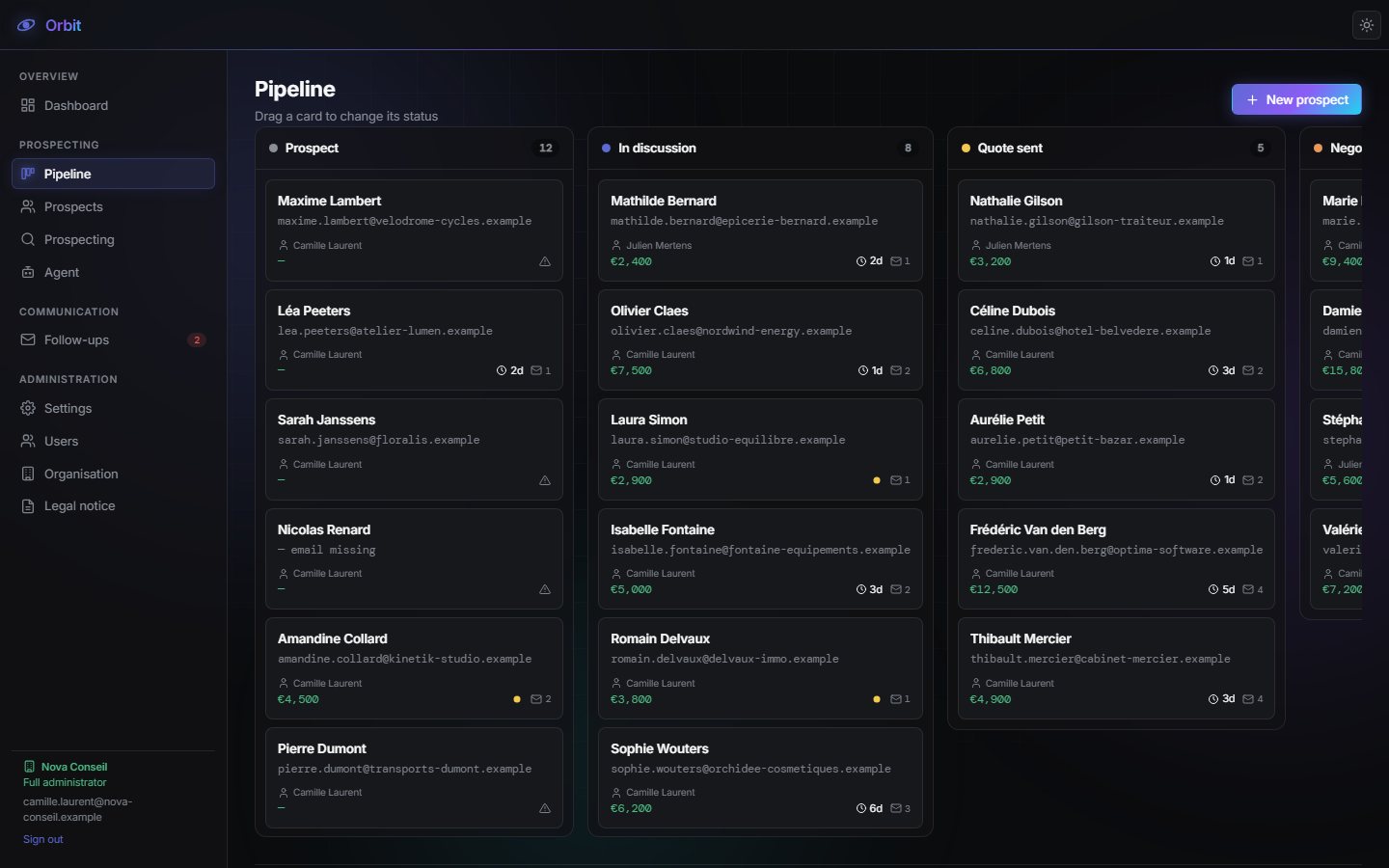
Each column is a sales stage. Drag a card from one column to another to change its status.
The stages
Prospect → In discussion → Quote sent → Negotiation → Client, with two negative outcomes: Declined and Abandoned.
Reading a card
- The name, the company and the estimated value.
- A badge shows the next follow-up (“in 3 d”, “imminent”) or “Automation disarmed” when no follow-up can be sent (missing email, for example).
- Click the card to open the prospect record.
Moving a prospect to Quote sent automatically schedules a quote follow-up 7 days later. No need to remember it yourself.
The New prospect button creates a record straight from the pipeline.
Prospects and prospect records
The full list of your prospects, and the detailed record for each one.
Search, filter, export
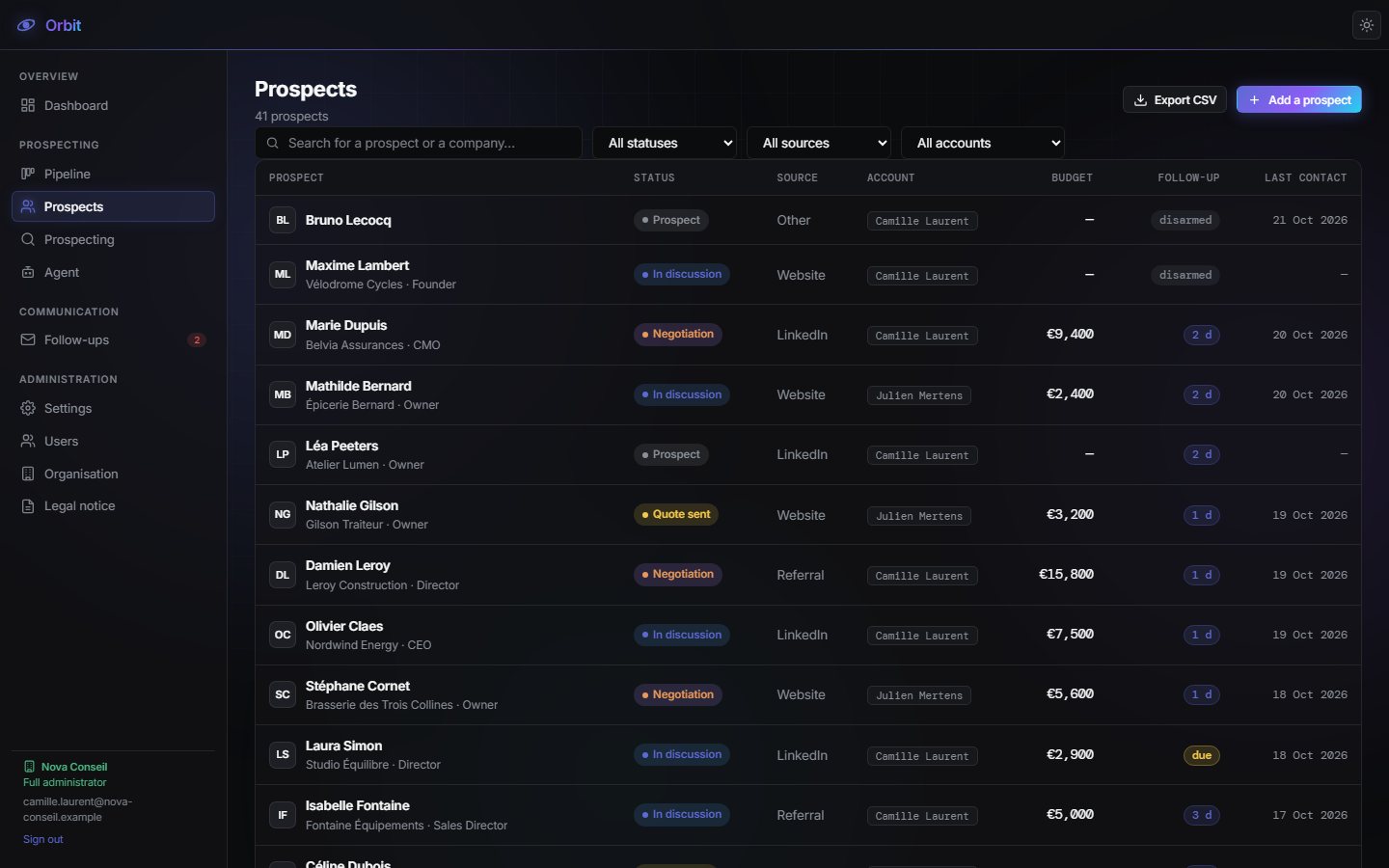
- Search for a prospect or a company… filters the list instantly.
- The All statuses, All sources and All accounts menus narrow down the view.
- The columns: prospect, status, source, originating account, budget, follow-up, last contact.
- Export CSV downloads the list for Excel or Google Sheets.
- Add a prospect opens a blank record: name and email are required.
The prospect record
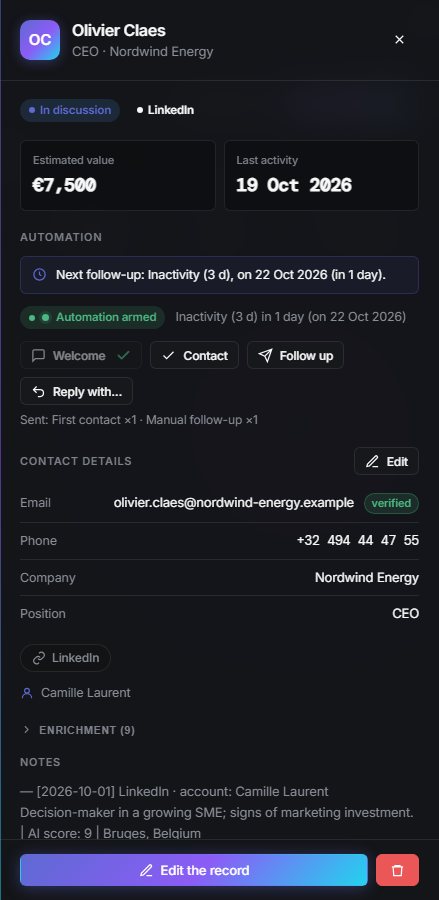
Click a prospect: its record opens in a side panel, without leaving the list.
 12345
12345- 1Automation: the next scheduled follow-up.
- 2Actions: Welcome, Contact, Follow up, Reply with…
- 3Contact details, with the email address status.
- 4Enrichment and notes.
- 5Edit the record; the bin icon on the right deletes it.
| Section | Content |
|---|---|
| Header | Estimated value and date of last activity. |
| Automation | Armed or disarmed, next scheduled follow-up and number of follow-ups already sent. |
| Contact details | Email (with its status: verified / unverified), phone, company, job title, LinkedIn profile, website. Edit to change them. |
| Enrichment | Qualification score, decision level, seniority, company size and sector, location, originating channel. |
| Notes | Context, needs, free-form history. |
| Follow-up history | Every email sent, with its date and outcome. |
Record actions
| Button | Effect |
|---|---|
| Welcome | Sends the first contact message and starts the follow-up sequence. |
| Contact | Logs a real exchange (the prospect replied, you called them). Resets the inactivity counter. |
| Follow up | Sends a follow-up right away (the quote follow-up if the prospect is at the “Quote sent” stage). |
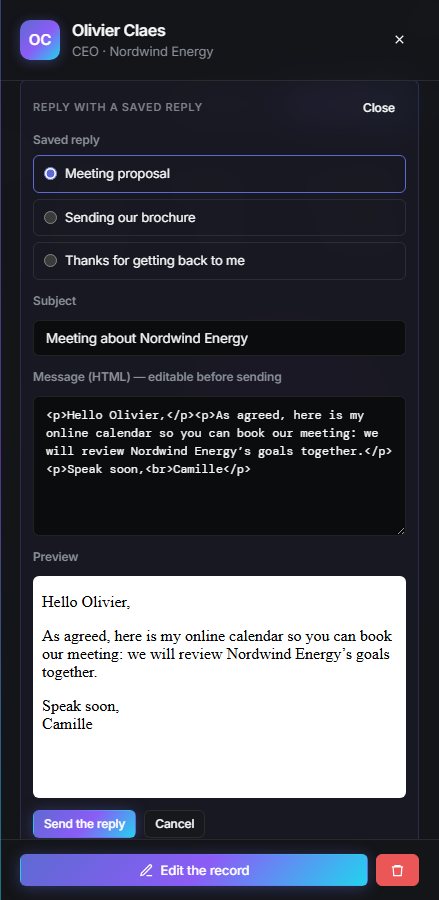
| Reply with… | Choose a saved reply, review it (subject and message can be edited), then Send the reply from your mailbox. |
If the address could not be verified, Orbit blocks automatic follow-ups to protect your domain's reputation. Correct the address with Correct the email, or confirm it with Confirm the address if you are sure it is right.
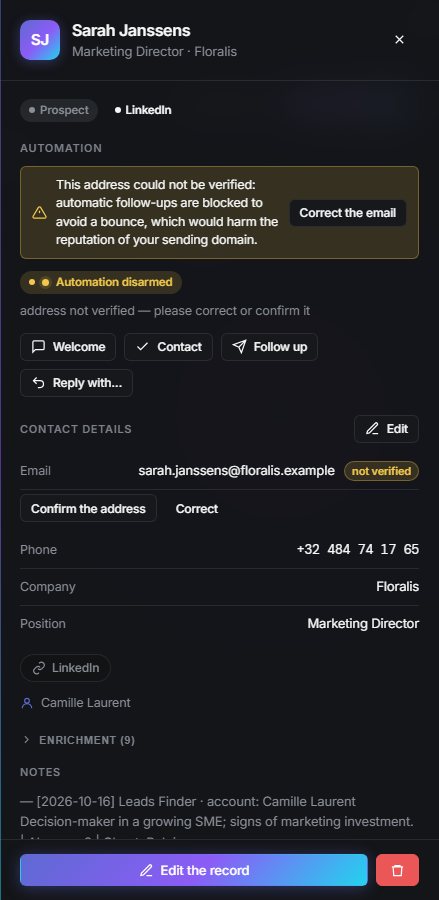
To delete a prospect, use the delete button on the record: it goes to the bin, from which it can be restored in Settings → Administration.
Automatic follow-ups
Orbit follows up with your prospects for you, from your mailbox, using your templates. The engine runs every hour.
The sequence
| Follow-up | When it is sent |
|---|---|
| First contact | On request (“Welcome” button); or automatically for new records with a reliable address, if automatic follow-ups are enabled. |
| Inactivity follow-up | After 3, 7 then 14 days without news following the first contact or your last exchange. |
| Quote follow-up | 7 days after moving to “Quote sent”. |
| Manual follow-up | When you click “Follow up” on a record. |
A follow-up is only sent if you have created the matching template in Settings → My templates. This is deliberate: no generic email ever goes out in your name.
The follow-up log
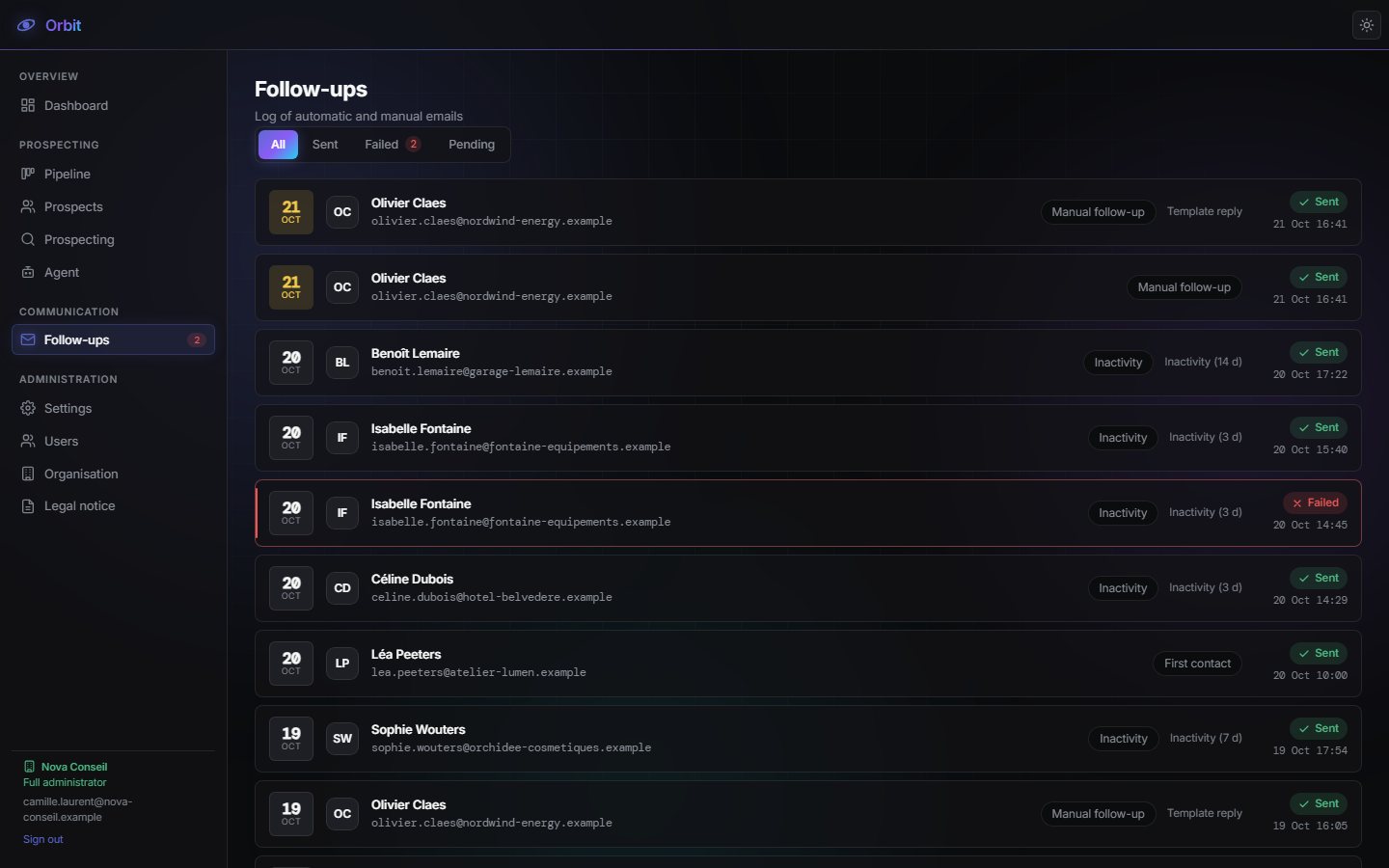
The All, Sent, Failed and Pending tabs sort the emails. A failure shows its cause (address rejected, mailbox disconnected…): fix the record or reconnect your mailbox, then follow up again from the record.
Sending mailbox, templates and saved replies
Everything is set in Settings, in four tabs: My account, My sending, My templates and Administration.
My account
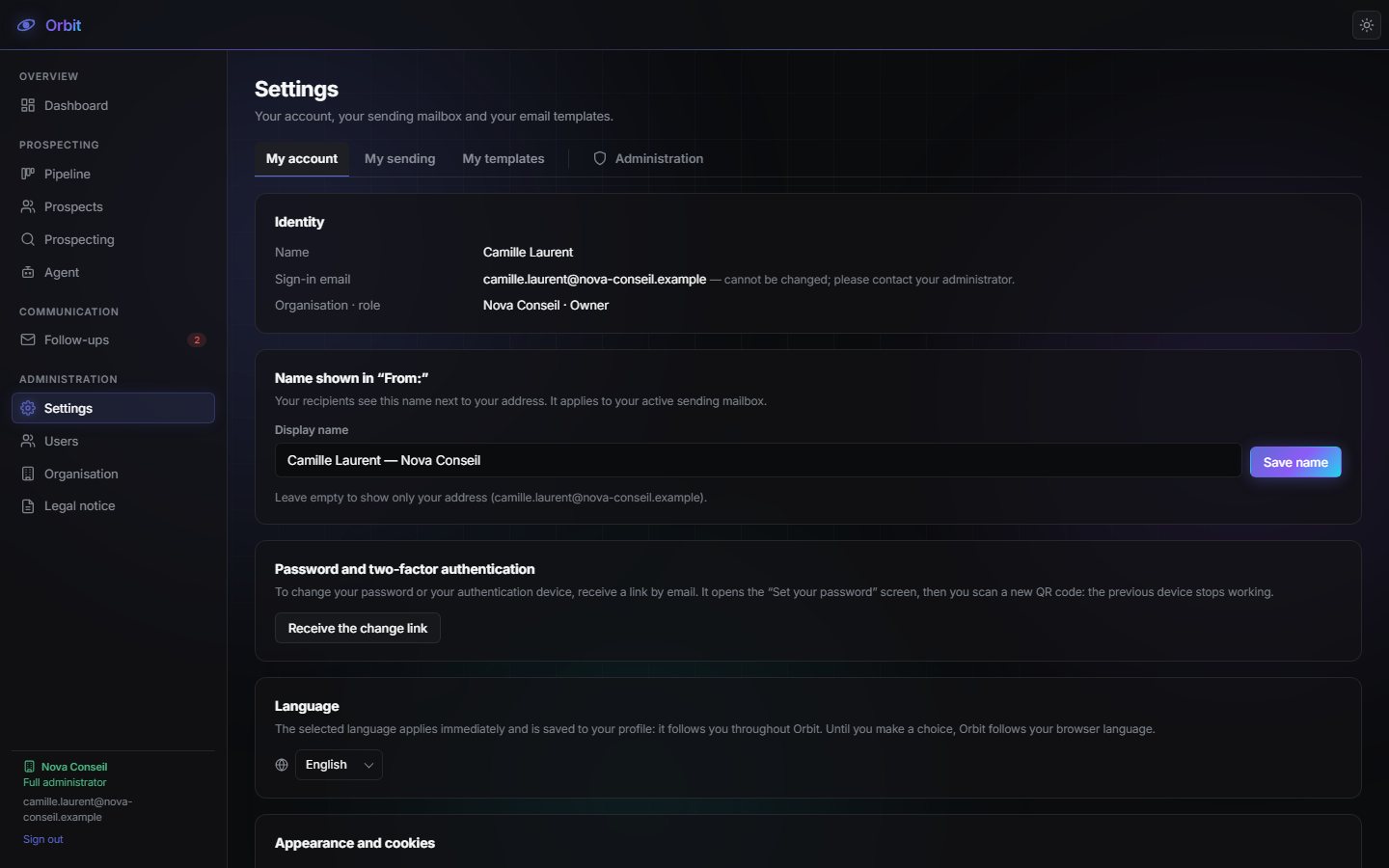
Your identity, the name shown in “From:” on your emails (e.g. “Marie Dupont — Example Ltd”), the link to change your password or two-factor device, the language, the theme and your cookie choices.
My sending: connect your mailbox
Your follow-ups are sent from your address, never from COTY's. Two methods:
- One-click connection (recommended) — Sign in with Microsoft or Sign in with Google: Outlook, Hotmail, Microsoft 365, Gmail, Google Workspace. No password is entered in Orbit.
- SMTP server — for OVH, Brevo, SendGrid or your own domain: server, port (465 or 587), login and password, then Save and test.
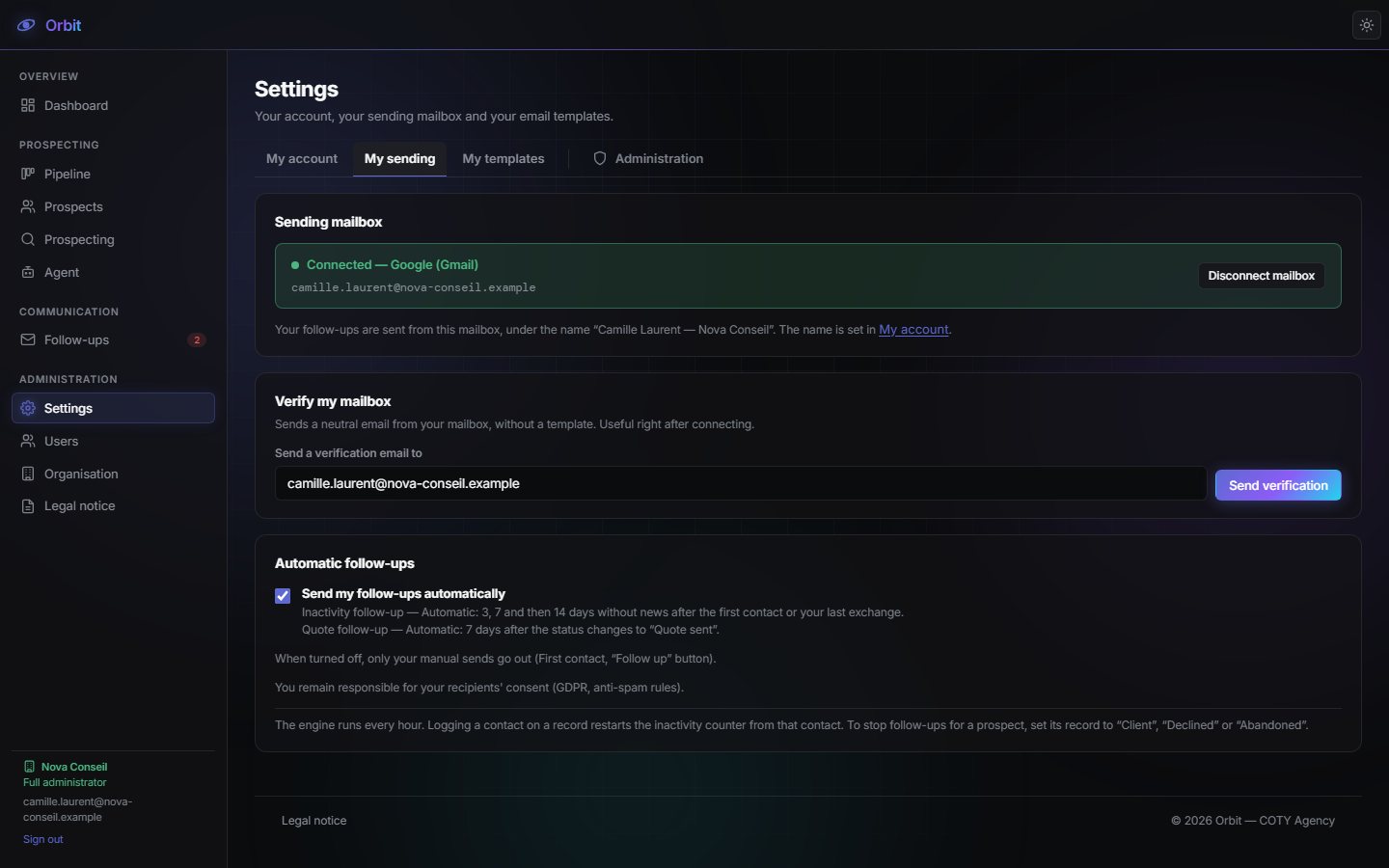
Once the mailbox is connected, Send verification sends you a neutral email to check everything works. The Send my follow-ups automatically switch turns the automatic sequence on or off; when it is off, only your manual emails are sent.
Gmail rejects your usual password over SMTP: create an “app password” in your Google account (Security → 2-Step Verification), or simply use the one-click connection.
My templates
One template per type of follow-up (First contact, Inactivity follow-up, Quote follow-up, Manual follow-up). For each one:
- Click the type to edit. Start from Start from an example, or import an
.htmlfile. - Write the subject and the content. Insert variables:
{prenom}(first name),{nom}(full name),{entreprise}(company),{poste}(job title). - If needed, create variants by originating channel (website form, LinkedIn, Google Maps…). Otherwise “All variants” applies everywhere.
- Click Save template.
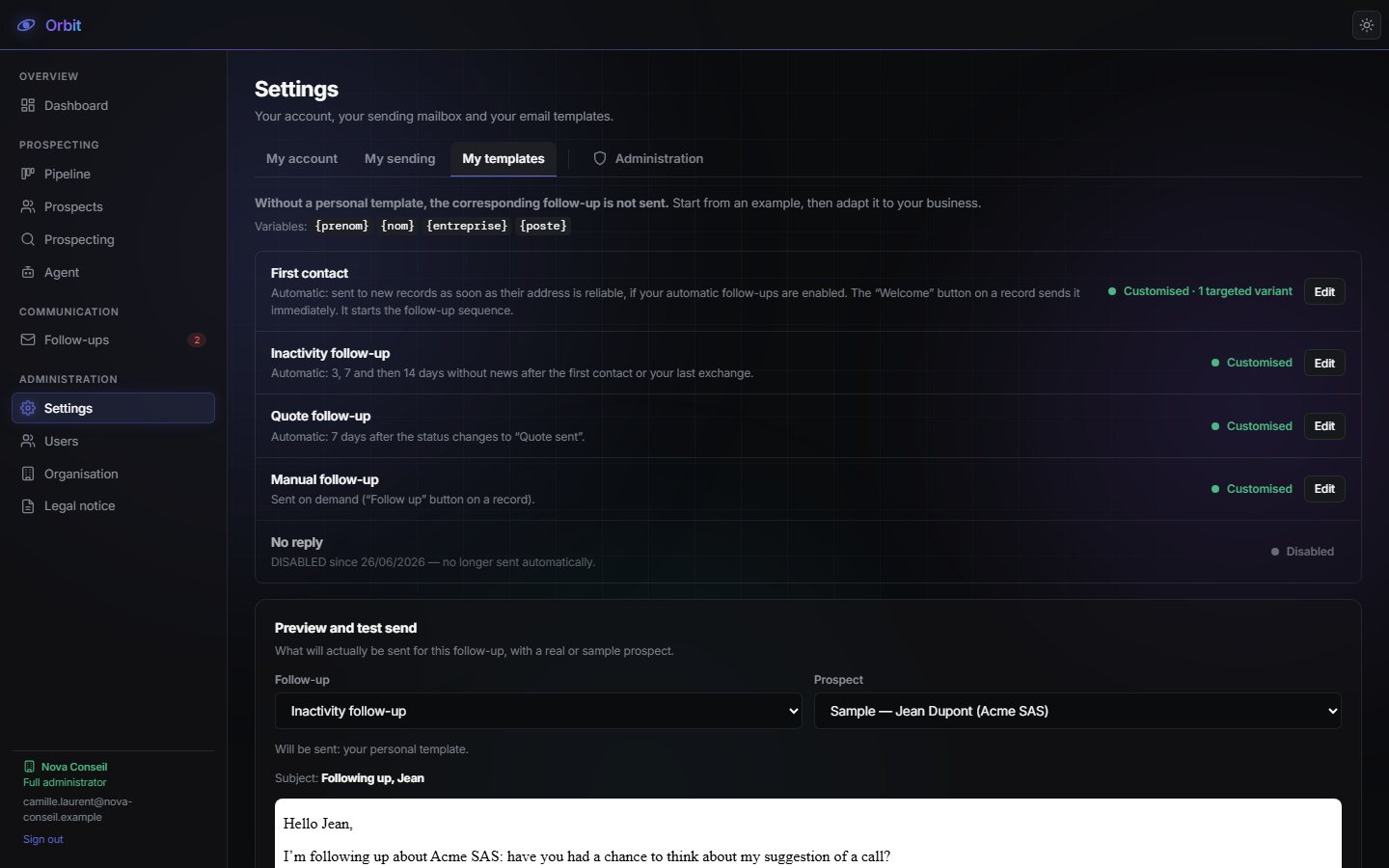
The Preview and test send block shows exactly what will be sent, with a real or fictitious prospect, and lets you Send the test to your own address.
My saved replies
Ready-made replies for your conversations (e.g. “Thank you, here is my availability”). Create them with Create a saved reply; use them from a record with Reply with….
Administration
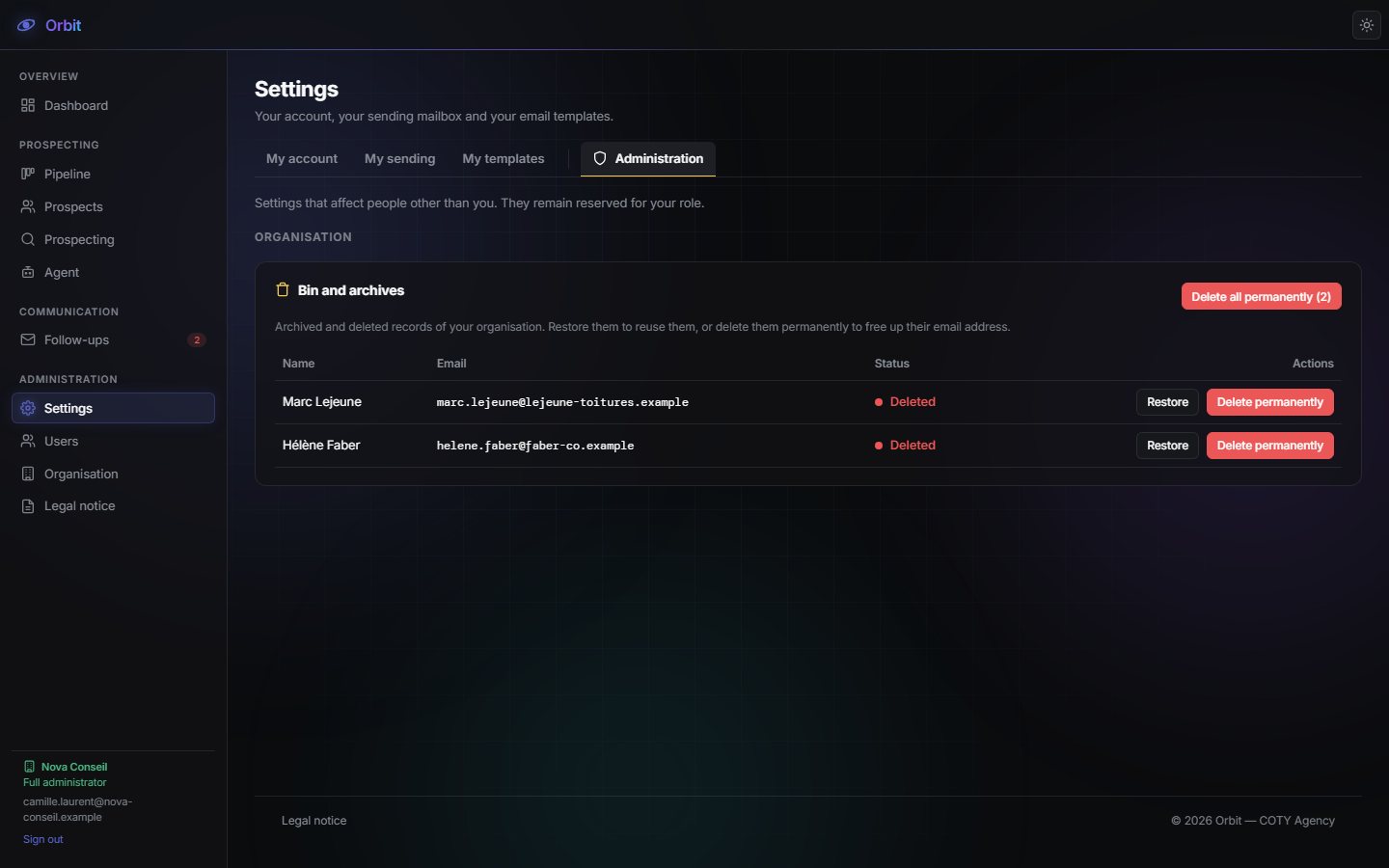
For administrators only: the organisation's bin and archives. Restore brings a record back into use; Delete permanently erases it along with its history (irreversible).
Prospector: search missions
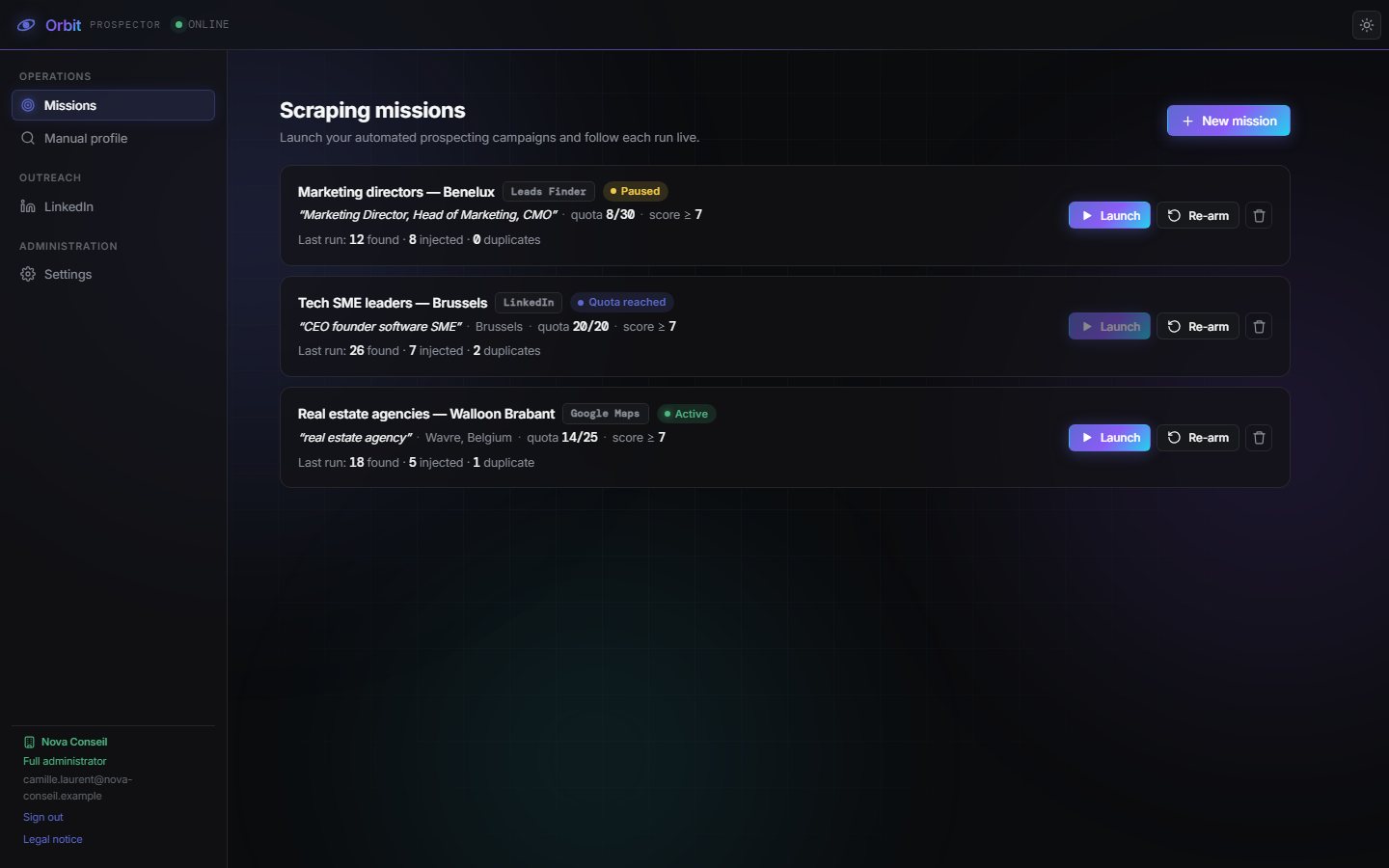
Open the Prospector from the Prospecting entry of the CRM menu. A mission is an automated search: Orbit finds profiles, scores them with AI and creates records for the best ones in the CRM.
The three channels
| Channel | Best for |
|---|---|
| Google Maps | SMEs, shops and local tradespeople (“plumber” in “Brussels”). |
| Executives and decision-makers in a sector. | |
| Leads Finder | A B2B database with email and phone, filtered by job title, country, industry, seniority and company size. |
Create a mission
- Click New mission.
- Give it a name (e.g. “Plumbers Brussels”) and choose the channel.
- Google Maps and LinkedIn: enter the query and the location. Leads Finder: the job titles, countries, industries, seniority, company size and options (email required, verified emails only, phone required).
- Set the quota (number of records wanted) and the score threshold (1 to 10): only profiles above the threshold become records.
- Adjust the qualification prompt if needed (what the AI should assess), then Create the mission.
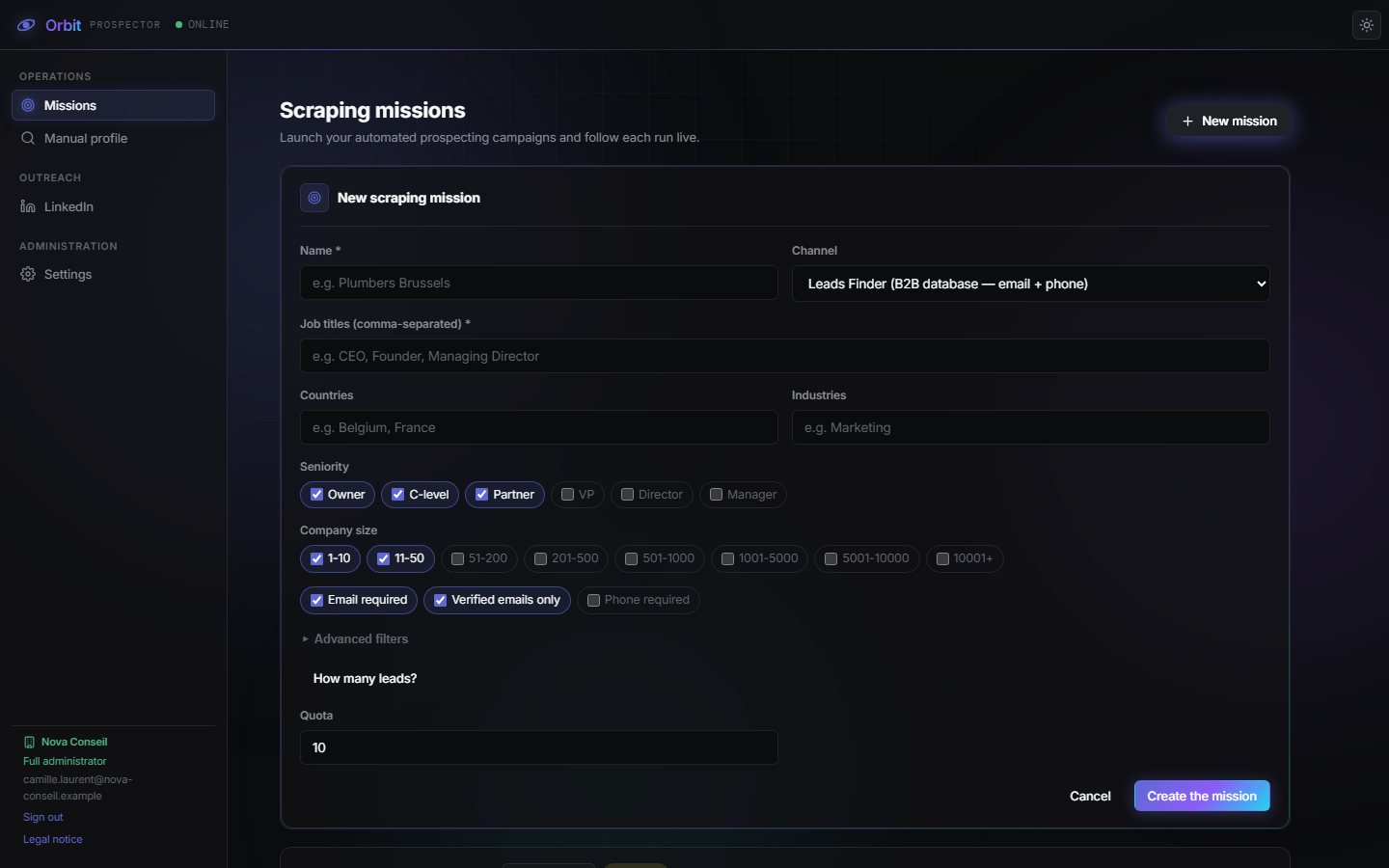
With Leads Finder, the How many leads? button counts the available profiles for free, before anything is spent. Adjust your filters until you get a useful volume.
Launch and follow a mission
Launch starts the search: the run log appears live (profiles found, qualified, injected, duplicates skipped). At the end, the mission card shows the outcome of the last run.
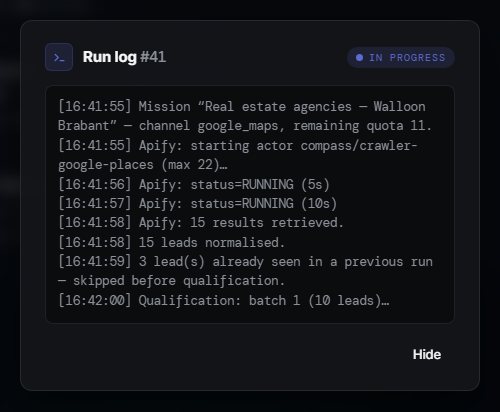
A mission whose quota is reached switches to Quota reached. Re-arm resets its counter to zero for a new batch.
Prospector: manual LinkedIn profile
Spotted an interesting profile on LinkedIn? Paste its address: Orbit analyses it and creates the record in one click.
- Manual profile menu: paste the LinkedIn profile URL, then Analyse.
- Orbit shows a description of the profile and an assessment: does this person need your services? The profile is marked Relevant or Not very relevant.
- Click Create the prospect record to add it to the CRM, or Reject to set it aside.
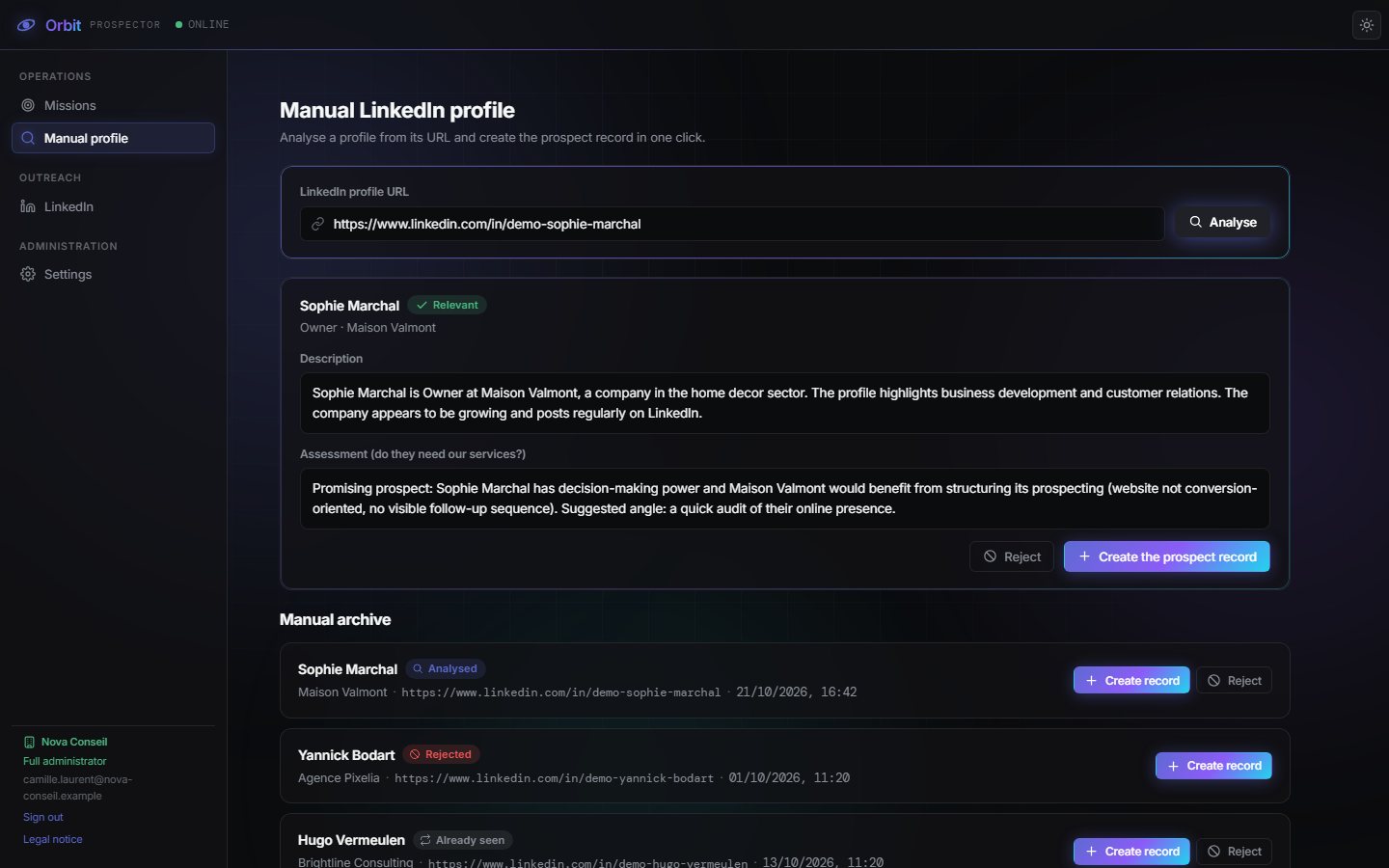
Analysed profiles stay in the manual archive: a profile you have already seen is flagged to avoid duplicates.
Prospector: LinkedIn outreach and desktop agent
LinkedIn outreach sends connection requests and the first message from your own account, through a small agent installed on your computer. You stay in control of every invitation.
Install the desktop agent
- In the CRM, Agent menu: click Download the agent and run the installer.
- Click Generate a pairing code and enter the code in the agent (valid for a few minutes, single use).
- Connect your LinkedIn account in the window that opens. Orbit stores no password.
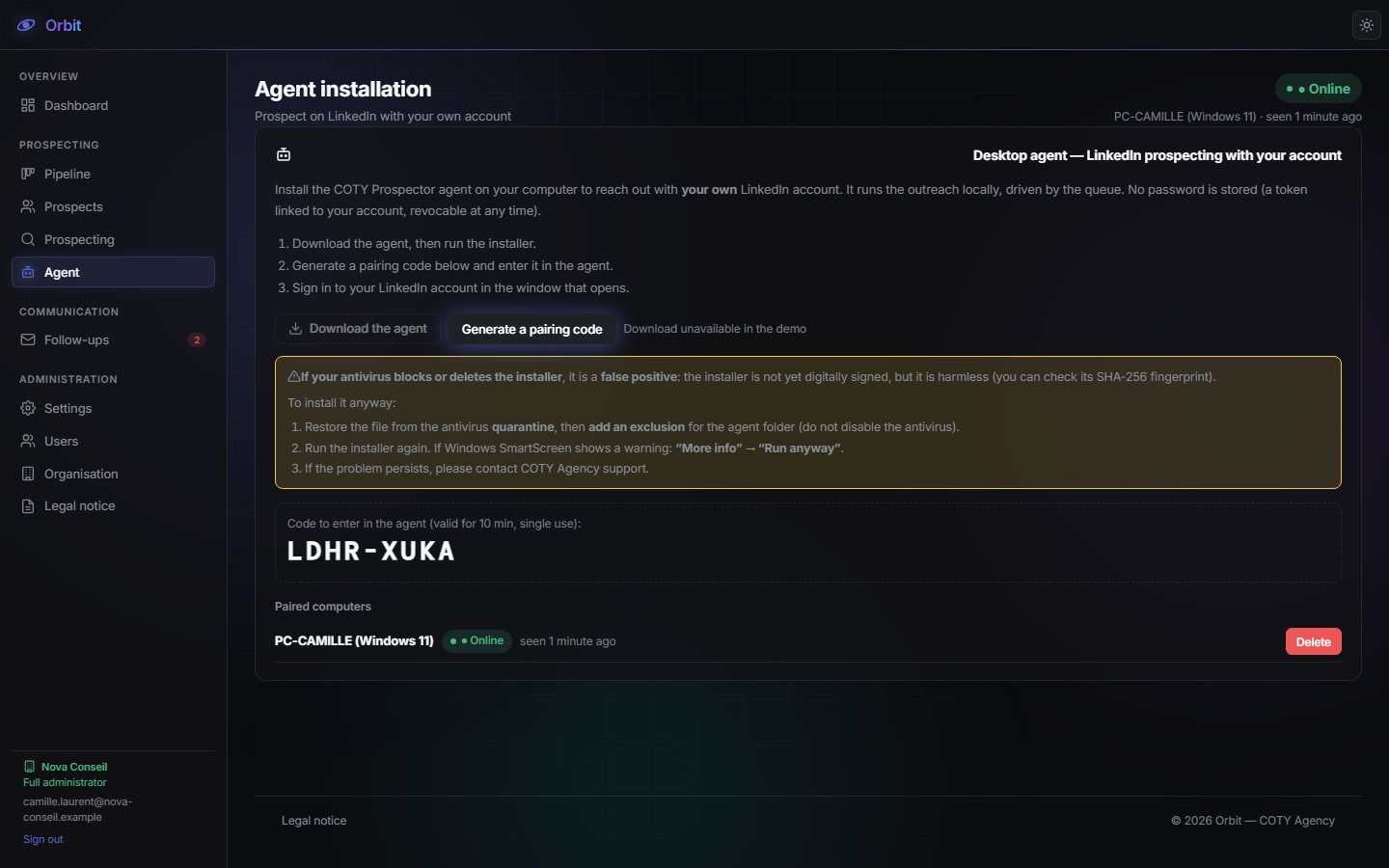
If your antivirus blocks the installer, restore it from quarantine and add an exclusion for the agent's folder. If Windows SmartScreen warns you: “More info” then “Run anyway”. If in doubt, contact support.
The outreach queue
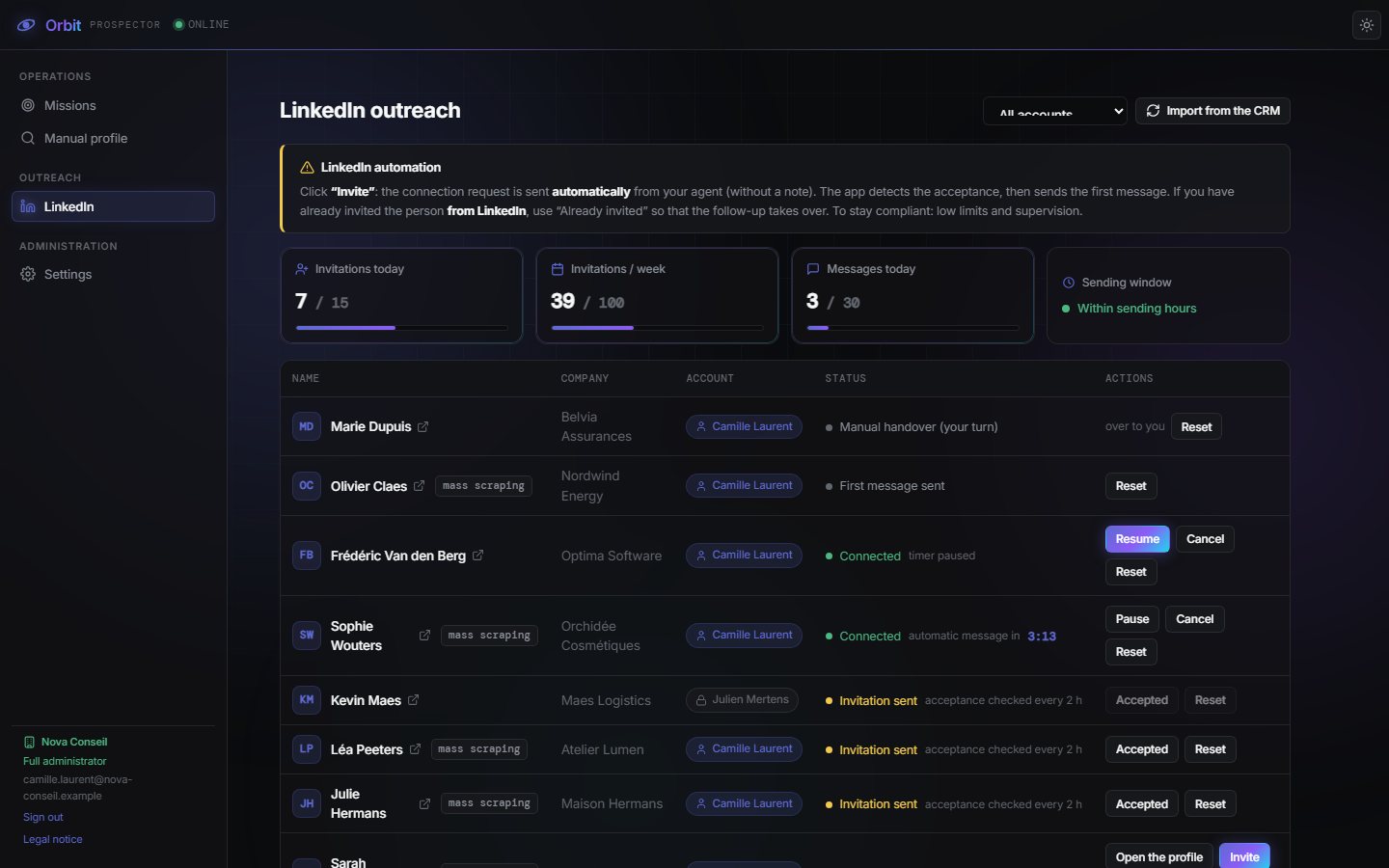
- Import from the CRM adds prospects who have a LinkedIn profile to the queue.
- Click Invite: the connection request is sent automatically from your agent (without a note).
- Orbit checks for acceptance every 2 hours (or right away with Check).
- Once the connection is accepted, the first message goes out after a 5-minute delay. Pause stops the timer, Resume restarts it, the cancel button removes the automatic sending. If you see the acceptance before Orbit does, click Accepted.
- Then it is over to you: the conversation continues in LinkedIn.
| Status | Meaning |
|---|---|
| To contact / To invite | The prospect is waiting for your invitation. |
| Invitation sent | Waiting for acceptance. |
| Connected | Accepted: the first message is about to go out. |
| First message sent | The first message has been sent. |
| Manual handover (your turn) | The rest happens by hand in LinkedIn. |
Already invited the person directly on LinkedIn? Click Already invited so that tracking takes over. Prospects belonging to another team member are visible but locked (private messaging). Reset puts a record back to “To contact” to replay the whole flow.
The quotas shown (invitations today and this week, messages today) and the sending window during business hours protect your LinkedIn account. The agent's test mode lets you try everything without sending anything; the first message template is personalised in the agent, and no message is sent until it is.
Prospector settings
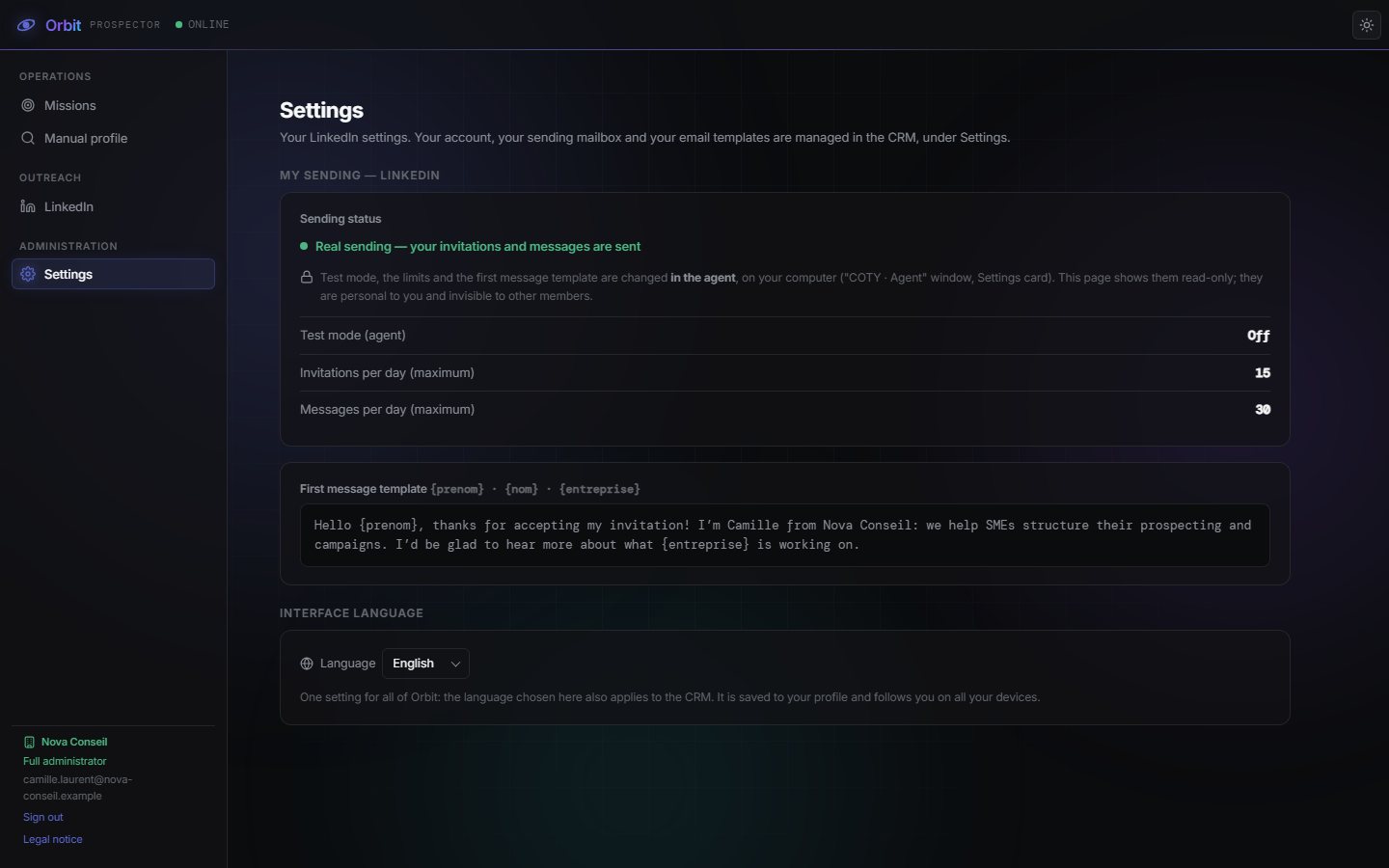
The Prospector's Settings menu shows the sending status (real or test mode), your agent's limits, the first message template and the interface language (shared across all of Orbit).
Team, roles and organisation
Each organisation has its own sealed workspace. The administrator invites colleagues and chooses what each of them can do.
Invite a user
- Users menu: enter the person's email address, tick their permissions (Read, CRM editing, Scraping, Admin) and click Invite.
- They receive an activation email (see chapter 2).
- To change their permissions later, tick or untick the boxes on their row, then save. Untick Active to suspend an account without deleting it; the red cross deletes it permanently.
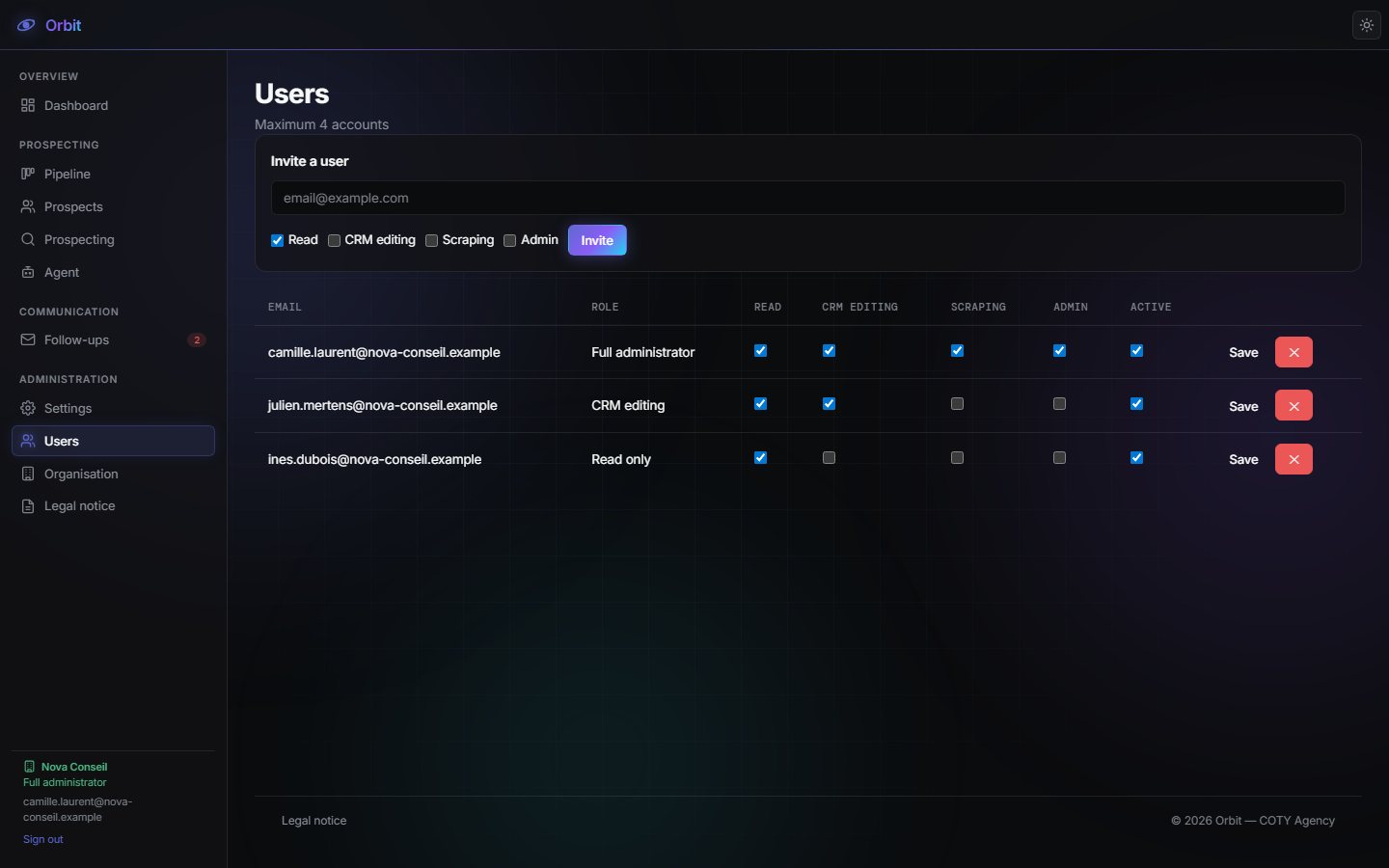
| Permission | What it allows |
|---|---|
| Read | View the dashboard, the pipeline and the records. |
| CRM editing | Create and edit prospects, send follow-ups, manage one's own sending settings. |
| Scraping | Use the Prospector and the LinkedIn agent. |
| Admin | All of the above, plus the organisation's users and bin. |
The number of accounts depends on your subscription; it is shown at the top of the page.
Organisation
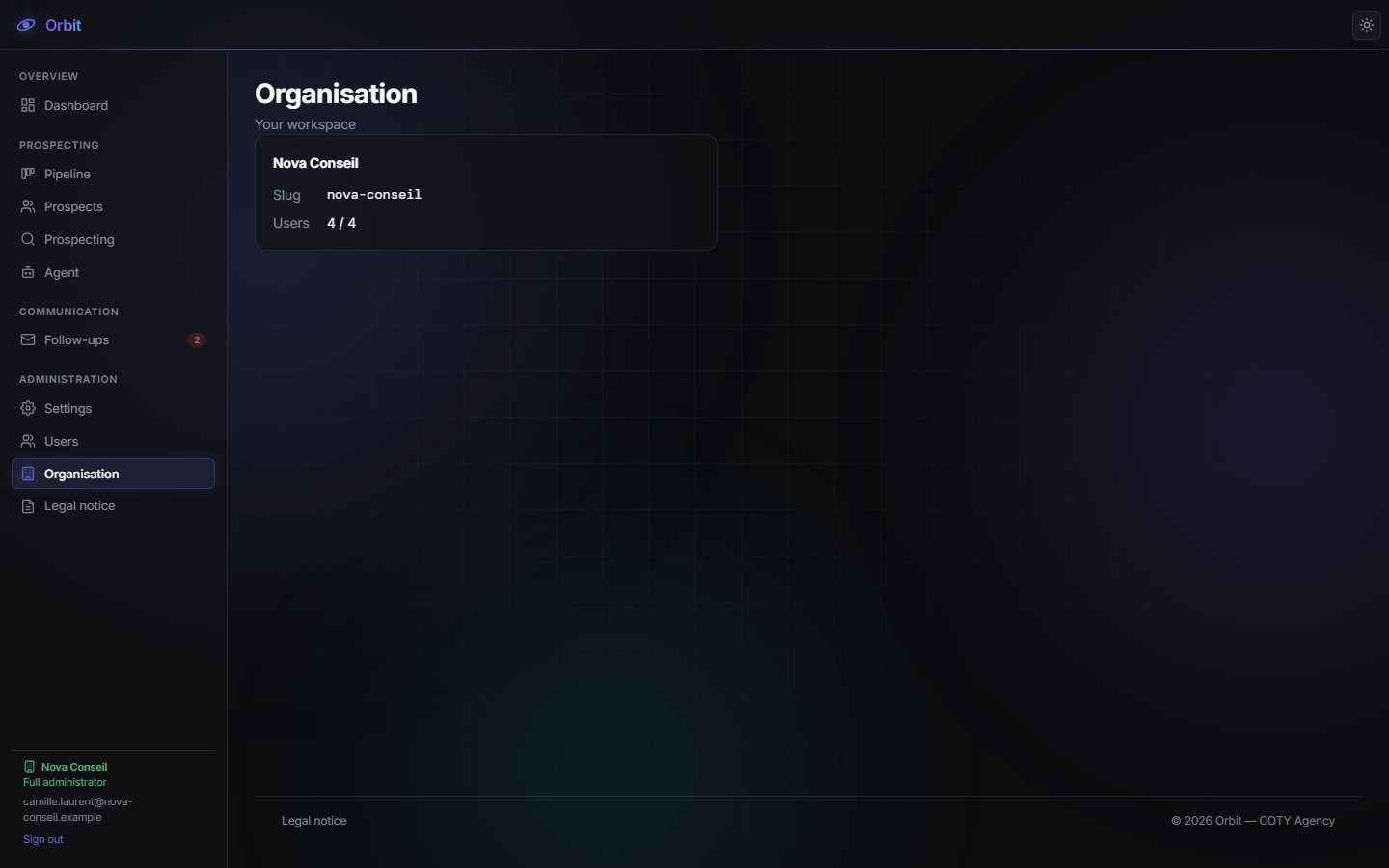
The Organisation menu, visible to the workspace owner, summarises your organisation: its name, its identifier and its users.
Security and GDPR
- Mandatory two-factor authentication for every user.
- Separation by organisation: the database itself prevents one client from seeing another's data.
- Per-user permissions: everyone sees and does only what their role allows.
- Encrypted sending credentials; the one-click connection means you never even hand over a password.
- Data hosted in Europe (European Union).
- Emails sent from your mailbox: never in COTY's name.
You remain responsible for processing your prospects' data: legal basis for B2B prospecting (legitimate interest), informing the people concerned, honouring objection and deletion requests. Permanently delete a record (bin) when a person asks.
FAQ and troubleshooting
- My follow-ups are not being sent.
- Check, in this order: a mailbox is connected (My sending); “Send my follow-ups automatically” is on; the follow-up's template exists (My templates); the prospect's address is verified (otherwise automation is disarmed).
- A card shows the “Automation disarmed” badge.
- The prospect's email is missing or could not be verified. Open the record and correct or confirm the address.
- My two-factor code is rejected.
- Make sure your phone's time is set automatically, wait for the next code and try again. If you lost your phone: Settings → My account → Receive the change link, or contact your administrator.
- A follow-up failed.
- Open Follow-ups → Failed to read the cause. Most often: address rejected by the recipient's server, or mailbox disconnected (reconnect it in My sending).
- My mission finds nothing.
- Broaden the query or the location, lower the score threshold, or use “How many leads?” (Leads Finder) to calibrate your filters before launching.
- The LinkedIn invitation is not sent.
- Check that the agent is online (Agent menu), that the LinkedIn session is “connected”, that the agent's test mode is off and that you are within the sending window and under today's quotas.
- I deleted a prospect by mistake.
- An administrator can restore it from Settings → Administration → Bin and archives.
- Can I export my data?
- Yes: Prospects → Export CSV.
Support
A question, a problem, an idea for improvement? Write to us:
- Email: contact@coty.agency
- Form: coty.agency/en/contact.html
- Online demo: coty.agency/demo-orbit
We reply within one business day. Please include your organisation's name, what you were doing and, if possible, a screenshot — but never send us a password or a security code.